How to Remove an eSIM After Traveling

Using an eSIM is convenient when traveling abroad. You can buy a data plan before your trip, install it on your phone, and connect when you arrive without changing your physical SIM card.
After your trip, you may wonder whether to delete, keep, or turn off the eSIM. This guide explains how to delete an eSIM on iPhone and Android, when to remove it, and what to check before deleting it.
Why Is eSIM a Popular Choice for International Travel?
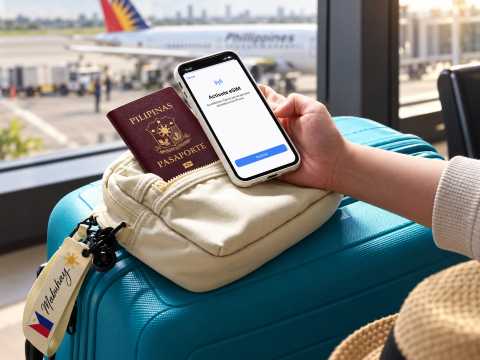
An eSIM, or embedded SIM, is a digital SIM that lets you connect to a mobile network without inserting a physical SIM card.
For Filipino travelers, some of the main benefits include:
- Keep your Philippine SIM in your phone while using a travel eSIM abroad.
- Use a travel eSIM mainly for mobile data.
- Continue receiving important calls or SMS on your Philippine number if your device and mobile plan support it.
- Avoid changing or carrying an extra physical SIM card.
- Store multiple eSIM profiles on supported smartphones.
- Switch between SIMs more easily through your phone settings.
How Is an eSIM Different From a Physical SIM?
A traditional SIM is a small physical card inserted into your phone's SIM tray. An eSIM is installed digitally instead.
Depending on the provider, you can usually install an eSIM by:
- Scanning a QR code
- Using the provider's app
- Entering an activation code
- Following your phone's eSIM setup instructions
For travelers, this means there is no small SIM card to keep while you are abroad and less risk of losing your main Philippine SIM.
Some smartphones can also store multiple eSIM profiles, which is useful if you frequently travel to different countries.


When Should You Delete an eSIM?
You do not need to delete an eSIM immediately after every trip. If the travel plan has already expired and it is not causing any problems, you can leave the profile on your phone.
However, deleting an eSIM may make sense in these situations:
- Before selling or giving away your phone
Remove your eSIM profiles before passing your device to another person. - After transferring your number or plan to a new phone
Once your eSIM has been successfully transferred to your new device, you can remove the old profile from your previous phone. - When changing mobile providers
Remember that deleting an eSIM from your phone is different from cancelling your mobile subscription. Contact your carrier if you want to cancel the actual plan. - After returning from an overseas trip
If you used a one-time travel eSIM and the package has already expired, you can delete it to keep your SIM list organized.
✈️ Pro Tip: Before your next trip, check your eSIM validity and activation rules. Some travel eSIMs should only be activated after arriving at your destination.
Before You Delete an eSIM
Before removing an eSIM from your phone, check these first:
- Make sure you are deleting the correct eSIM.
- Check whether the eSIM is linked to your main mobile number.
- Make sure you no longer need the remaining data.
- Check whether the eSIM can be installed again after deletion.
- Save the QR code or activation details if your provider recommends it.
- Transfer your number first if you are changing phones.
- Check whether the eSIM is still active or has already expired.
- Remember that deleting an eSIM does not automatically cancel your mobile plan.
If you think you may need the eSIM again, turning it off can be more convenient than deleting it.
Delete vs Turn Off vs Cancel an eSIM
These three actions are different:
- Delete an eSIM: Removes the eSIM profile from your phone. You may need another QR code or activation process to use it again.
- Turn off an eSIM: Keeps the eSIM stored on your phone but temporarily stops the line from being used.
- Cancel an eSIM plan: Ends the mobile service or subscription with your carrier or eSIM provider.
If you only want to stop using a travel eSIM temporarily, turning it off is usually the easier option.
How to Delete an eSIM on iPhone
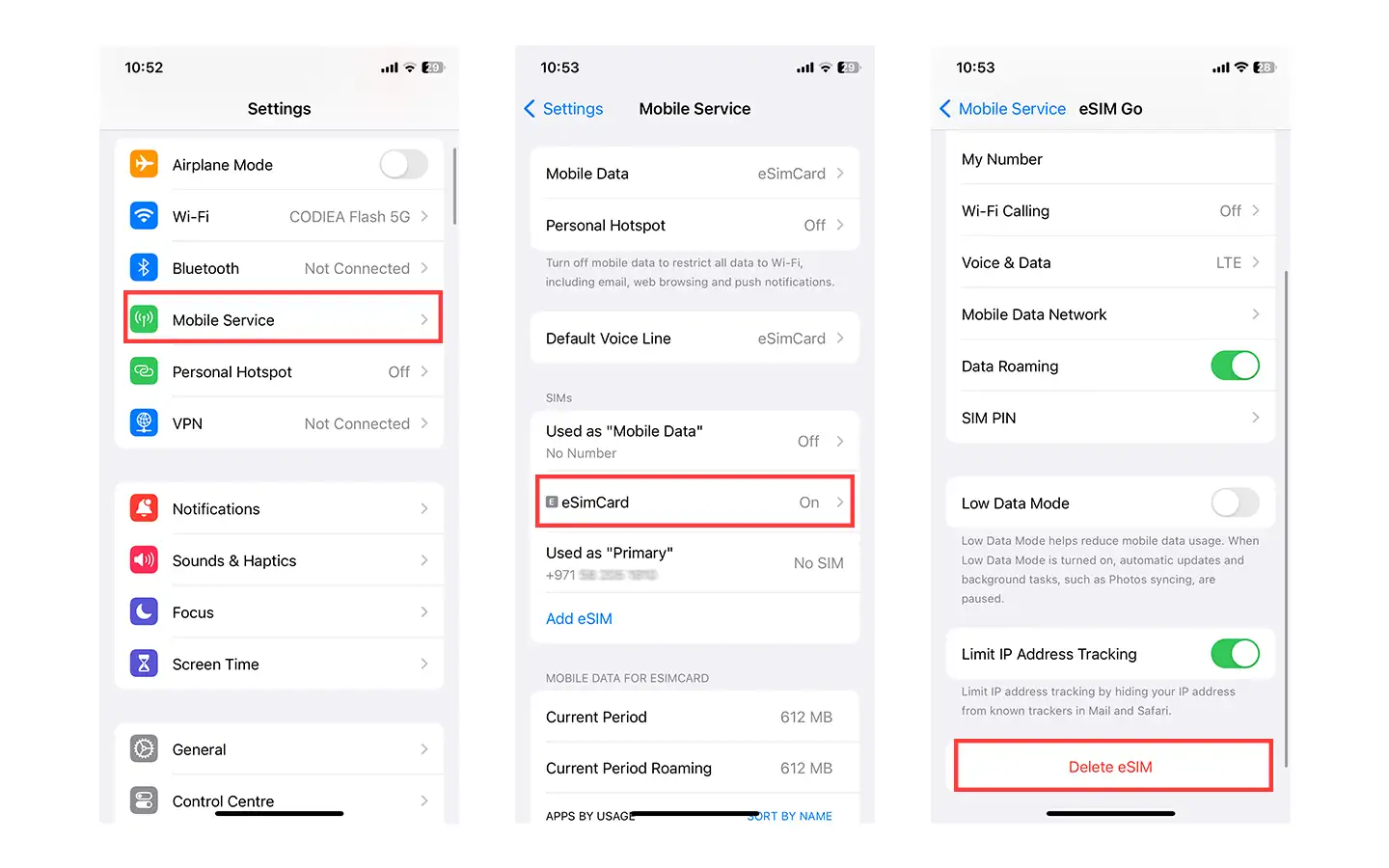
You can delete an eSIM directly from your iPhone's Settings.
The exact wording may vary slightly depending on your iPhone language, region, and iOS version.
How to Delete an eSIM on iPhone Step by Step
- Open Settings.
- Tap Cellular, Mobile Data, or Mobile Service, depending on your device settings.
- Find the eSIM or mobile plan you want to remove.
- If you have only one plan, tap Delete eSIM.
- If you have multiple plans, select the plan you want to remove and tap Delete Plan or the available delete option.
- Follow the instructions on your screen to confirm.
Before deleting an eSIM, make sure you have selected the correct plan, especially if you have both your Philippine mobile number and a travel eSIM installed.
Apple does not recommend deleting an eSIM simply to troubleshoot a network problem unless your carrier tells you to do so. After an eSIM is deleted, you may need to contact your carrier or eSIM provider to activate it again.
How to Delete an eSIM on iPad
If your iPad supports Cellular and eSIM, you can also remove an installed plan from Settings.
Go to:
Settings > Cellular Data > Select the eSIM plan > Delete eSIM or Delete Plan
If several plans are stored on your iPad, check carefully that you are selecting the correct one before deleting it.
What to Do If the Deleted eSIM Still Appears on Your iPhone
If you have already deleted an eSIM but still see a network name or SIM-related information, check the following:
- Make sure you deleted the correct eSIM.
- Check whether another physical SIM or eSIM is still installed.
- Restart your iPhone and check again.
- If the issue involves network activation, contact your carrier or eSIM provider before trying to delete the profile again.
If your phone displays No SIM after deleting an eSIM, it may simply mean there is currently no active SIM or eSIM available on the device.
It does not necessarily mean there is something wrong with your phone.
How to Delete an eSIM If You Have Multiple eSIMs
If you keep several travel eSIMs on your phone, give each one a clear name when you install it.
For example:
- Japan Trip
- Korea Trip
- China Trip
- Europe Trip
This makes it easier to identify the correct eSIM later and reduces the risk of accidentally deleting your main mobile number.
On an iPhone, go to:
Settings > Cellular or Mobile Service > Select the eSIM > Delete eSIM/Delete Plan
 NO.1
NO.1



























































How to Delete an eSIM on Android
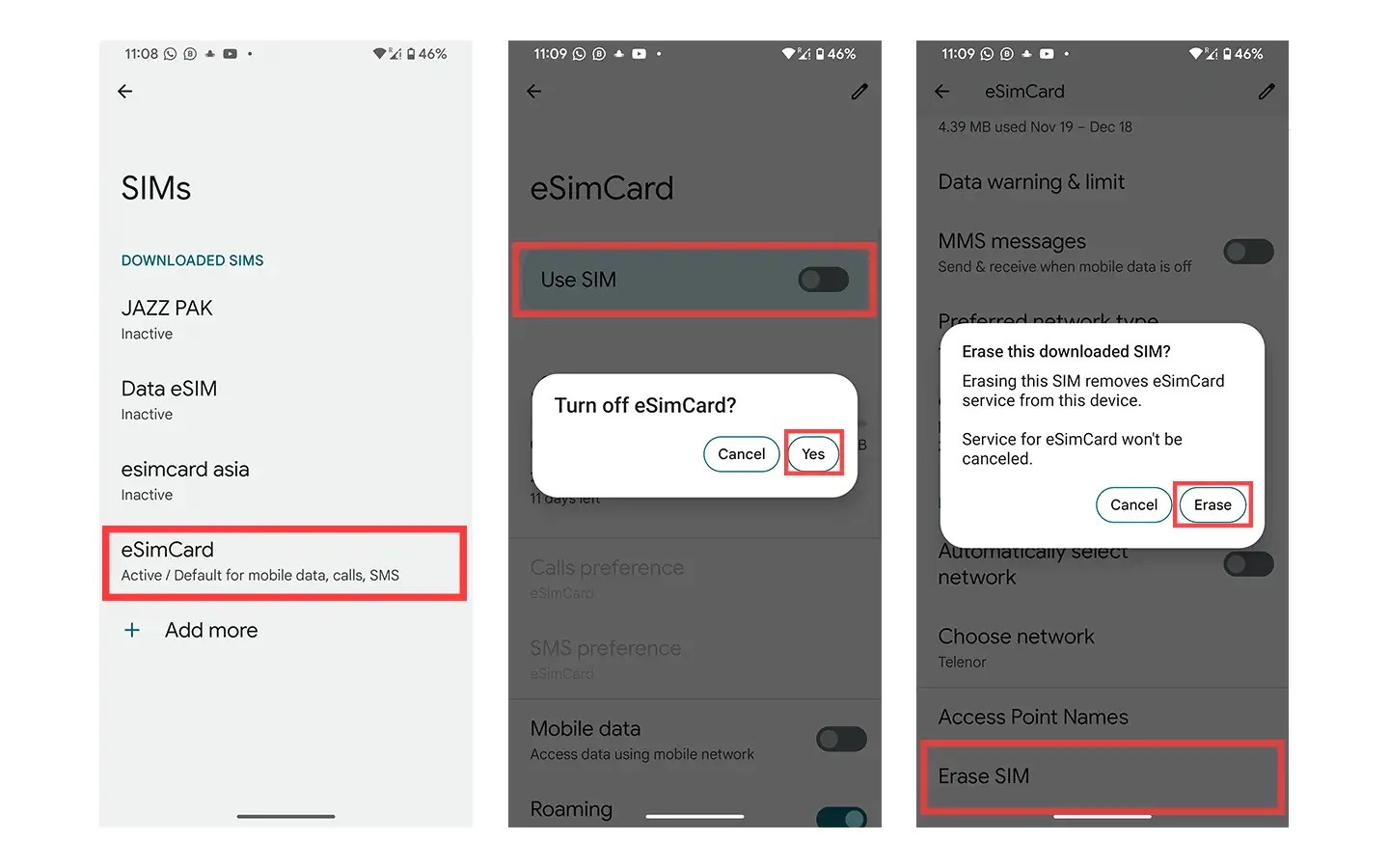
The steps for deleting an eSIM on Android can vary depending on the phone brand, model, Android version, and manufacturer interface.
You will usually find eSIM settings under:
- SIM Manager
- Mobile Network
- Network & Internet
- SIMs
How to Delete an eSIM on Samsung Galaxy
On supported Samsung Galaxy devices:
- Open Settings.
- Tap Connections.
- Tap SIM Manager.
- Select the eSIM plan you want to remove.
- Disable the plan if required.
- Tap Remove.
- Confirm the removal.
Menu names may vary slightly depending on your Galaxy model and software version.
Samsung offers eSIM support on many Galaxy devices, including selected Galaxy S, Galaxy Z, and other supported models. Availability can vary by country, mobile carrier, and specific device version.
If you cannot find an eSIM option, check whether your exact Samsung Galaxy model and carrier support the feature.
How to Delete an eSIM on Other Android Phones
The process can be slightly different on Google Pixel, OPPO, Xiaomi, vivo, and other Android devices.
On Google Pixel, for example, you can generally go to:
Settings > Network & internet > Mobile network > Select the eSIM > Erase eSIM
For other Android phones, look under:
- Settings > SIMs
- Settings > Mobile Network
- Settings > Network & Internet
Then select the eSIM you want to remove and look for:
- Delete SIM
- Erase eSIM
- Remove eSIM
- Remove SIM
Before confirming, check the eSIM name or number carefully. If you accidentally remove an active eSIM, you may need to contact your carrier or eSIM provider to activate it again.
For OPPO, Xiaomi, vivo, and other Android brands, menu names can be different. If you cannot find the setting, use the search bar inside Settings and search for:
- eSIM
- SIM
- Mobile Network
- SIM Manager
If you only want to stop using an eSIM temporarily, turning it off is usually better than deleting it.
Once an eSIM profile is deleted, reinstalling it may require another QR code or activation process.
🌏 Pro Tip: Traveling abroad soon? You can check available international eSIMs on Trip.com and choose a package based on your destination, trip length, and data needs.
What If You Can't Find the Delete eSIM Option?
If the delete or remove option does not appear on your phone, try these steps:
- Check whether your phone supports eSIM.
- Look under SIM Manager, Mobile Network, Cellular, or Network & Internet.
- Use the search bar in your phone's Settings and search for eSIM or SIM.
- Make sure you have selected the correct SIM profile.
- Restart your phone and check again.
- Check whether your phone software is up to date.
- Contact your carrier or eSIM provider if the eSIM cannot be removed.
The exact menu name can vary depending on your phone model, operating system version, country, and mobile provider.
Can You Reinstall an eSIM After Deleting It?
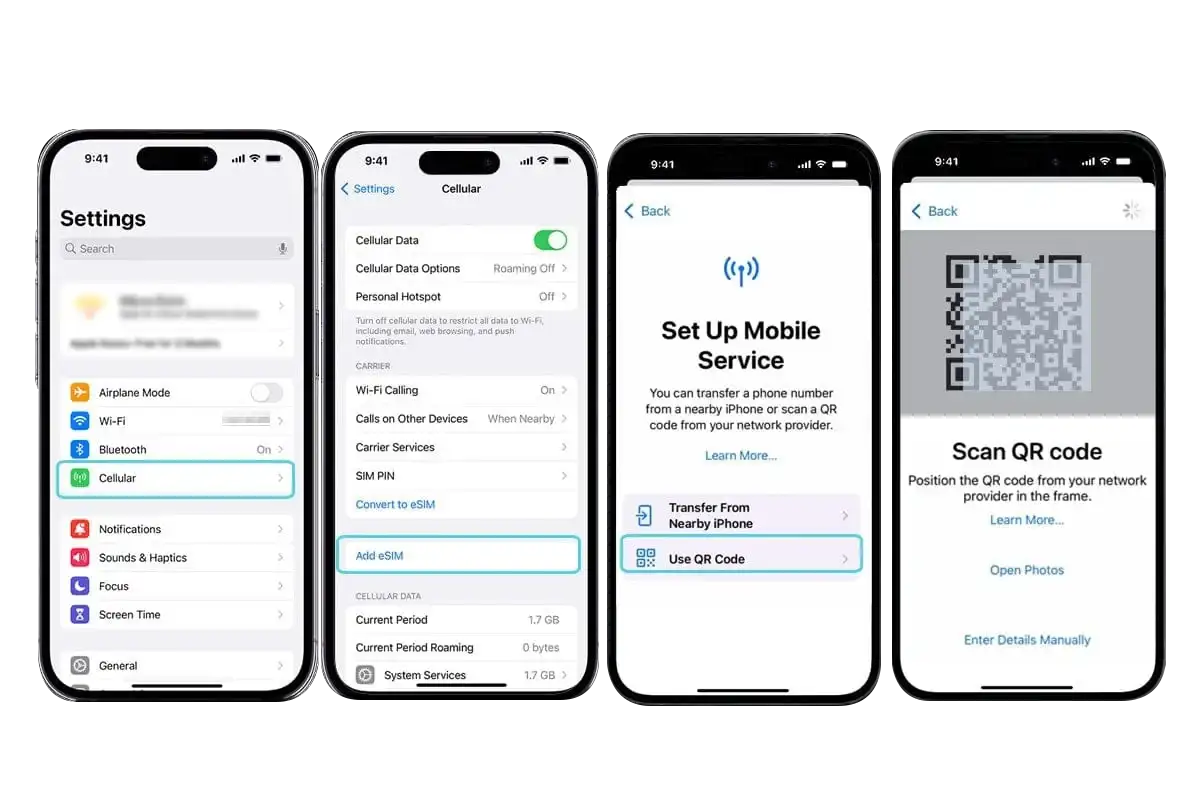
Deleting an eSIM does not always mean you can scan the same QR code and install it again.
Some providers allow an activation code or QR code to be reused, while others allow it to be used only once.
After deleting the eSIM, you may need:
- A new QR code
- A new activation code
- A replacement eSIM
- Help from your mobile provider
- A new travel eSIM package
If you purchased a travel eSIM, check the provider's terms before deleting it. Some travel eSIMs are linked to one device or can only be installed once.
If the eSIM is connected to your main phone number and you only want to stop using it temporarily, turning off the line is usually better than deleting it.
Should You Delete an eSIM Before Selling or Giving Away Your Phone?
Yes. If you are selling, trading in, or giving your phone to another person, make sure your eSIM and personal information are properly removed.
Before handing over your device:
- Make sure your mobile number or eSIM has been transferred to your new phone if needed.
- Check that you no longer need the eSIM stored on the old device.
- Remove the eSIM.
- Sign out of important accounts when required, such as your Apple Account or Google Account.
- Follow your device's instructions for disabling device-tracking features when required.
- Back up any photos, files, messages, or other information you want to keep.
- Erase the device and restore it to factory settings before giving it to someone else.
On an iPhone, when you use Erase All Content and Settings, Apple may give you the option to keep or delete your eSIM.
Choose carefully depending on whether you are keeping the phone or passing it to another person.







Important Things to Know Before and After Deleting an eSIM
One of the most important things to remember is:
Deleting an eSIM and cancelling a mobile plan are not the same thing.
Deleting an eSIM removes the eSIM profile from your device. It does not automatically cancel the phone number, subscription, or mobile plan with your carrier.
If you want to cancel the service completely, contact your carrier or eSIM provider.
1. What Happens When You Delete an eSIM? Is It Safe?
Deleting an eSIM does not damage your phone.
However, the deleted eSIM can no longer be used to connect to the mobile network on that device.
If it is an expired travel eSIM, there may be little reason to keep it.
However, if it is your main phone number or an active mobile plan, avoid deleting it unnecessarily. You may need your carrier to issue another eSIM or activation code before you can use the number again.
Depending on the provider, additional requirements or fees may apply.
2. Can You Add an eSIM Again After Deleting It?
Yes, you can add an eSIM again if your device and carrier support it, but you may need new activation information.
Depending on your carrier, setup may involve:
- Scanning a QR code
- Using the carrier's app
- Entering an activation code
- Downloading the eSIM directly through your device
On supported Android devices, you may see options similar to:
Settings > Network & internet > SIMs/Add SIM > Set up an eSIM
The exact path depends on your Android device.
If you deleted an eSIM linked to your regular phone number, contact your mobile carrier first. They may need to provide a new eSIM profile or QR code.
3. How to Turn Off an eSIM Without Deleting It
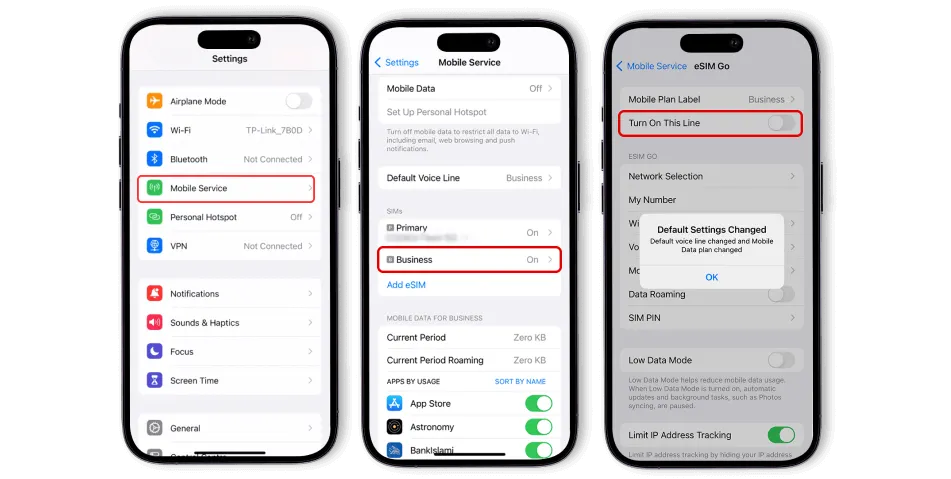
If you think you may need the eSIM again, turning it off is often more convenient than deleting it.
For example, you may keep your Philippine SIM and a Japan travel eSIM on the same device. While in Japan, you can use the Japan eSIM for mobile data. After returning home, you can turn it off and switch back to your Philippine SIM.
On an iPhone, go to:
Settings > Cellular/Mobile Service > Select the eSIM
Then turn off Turn On This Line or the equivalent setting shown on your device.
The eSIM profile remains stored on the phone, but the line will no longer be active.
This can be useful for frequent travelers because you do not need to immediately delete every eSIM after a trip.
- One way
- Round-trip
- direct cheapest
 MNL5:15 AM1h 25mNonstopBCD6:40 AMManila - Bacolod|Fri, Nov 6|Cebu PacificRUB 3,109RUB 5,01338% offSearch38% offRUB 5,013RUB 3,109
 - MNL5:55 PM1h 25mNonstopBCD7:20 PMManila - Bacolod|Tue, Oct 27|Cebu PacificRUB 3,559RUB 5,01328% offSearch28% offRUB 5,013RUB 3,559
- MNL6:20 AM1h 25mNonstopBCD7:45 AMManila - Bacolod|Sun, Nov 8|Cebu PacificRUB 3,559RUB 5,01328% offSearch28% offRUB 5,013RUB 3,559
 MNL13:001h 25mNonstopBCD14:00Manila - City|Mon, Sep 6|Normal AirlineFind more flightsFind more flights
Quick Tips After Deleting an eSIM
After removing an eSIM:
- Check that your main Philippine SIM is selected for mobile data if needed.
- Turn mobile data back on for your main line.
- Check your Data Roaming settings.
- Restart your phone if the network does not reconnect.
- Check whether your main SIM can still receive calls and SMS.
- Keep important eSIM purchase or activation details until your trip is completely finished.
- Contact your provider if you accidentally deleted an active eSIM.
How to Manage Your eSIM Before and After Traveling
Preparing your eSIM before departure can help you avoid connection problems when you arrive.
Use this checklist:
- Check whether your phone supports eSIM.
- Make sure your phone is carrier-unlocked if required.
- Buy an eSIM that covers your destination.
- Check when the eSIM validity period begins.
- Install the eSIM according to your provider's instructions.
- Give the eSIM a clear name such as Japan Trip, Korea Trip, or China Trip.
- Check the Data Roaming settings for your main Philippine SIM to avoid unexpected roaming charges.
- Keep the QR code or activation information if your provider recommends it.
- After returning to the Philippines, turn off or delete the travel eSIM once you are sure you no longer need it.
If you may use the same eSIM again, consider turning it off first instead of deleting it immediately.
Deleting the profile may mean you need another QR code, activation code, or eSIM package later.
FAQs About How to Delete an eSIM
-
Can I delete an eSIM after my trip?
-
Will deleting an eSIM cancel my mobile plan?
-
Can I reinstall an eSIM after deleting it?
-
Is it better to delete or turn off a travel eSIM?
-
What happens if I accidentally delete my main eSIM?
Popular Searches
-
Popular Content
-
Top Flight Links
-
Popular Hotels
-
Popular Things to Do
-
Featured guides
-
Trip.com links
- Trip.com E-Ticket
- Trip.com Payment Methods
- Trip.com Passport Change
- Trip.com Customer Service
- Trip.com Flight Cancellation
- Trip.com VIP Lounge Access
- Trip.com Phone Number
- Trip.com Check In
- Payment Sale
- Trip Coins
- Trip.com Hotel Refund
- Trip.com Cancellation Policy
- Trip.com Ticket Issued Status
- Trip.com Flight Ticket
- Trip.com Membership
- Trip.com E-Receipt
- Trip.com Seat Selection
- Trip.com Baggage Allowance
- Trip.com Flight Change
- Trip.com Reviews
- Plane tickets from Manila to Hong Kong
- Cheap tickets from Manila to Tagbilaran
- Cheap flights from Manila to Cebu
- Cheap flights from Manila to Iloilo City
- Cheap flights from Manila to General Santos
- Cheap tickets from Cebu to Manila
- Cheap flights from Bacolod to Manila
- Cheap flights from Manila to Tacloban
- CA986 Flight Status
- 5J187 Flight Status
- PR431 Flight Status
- PR741 Flight Status
- MH709 Flight Status
- EK2521 Flight Status
- 5J582 Flight Status
- Hotels near 72 wonder tower
- Hotels near Mactan–Cebu International Airport
- Hotels near Fenghuang Ancient Town
- Hotels near Greenland Xindu East Coast Times Square South Area
- Hotels near Changbai Mountain Beauty Pine International Sculpture Park
- Shiji Qingteng Capsule Hotel (T3 Terminal)
- Bangkok-Pratunam Hotel
- Shangri-La Resort
- De Mani Hotel
- Fan Yu Gaming Center
- Hotels in Fenghuang County
- Hotels in Davao City
- Hotels in North Jakarta
- Hotels in Moscow
- Hotels in Seoul
- Philippines 5G eSIM | Dual Network • All AI & TikTok | Day Pass/Total Data Package | 24-Hour Billing | 1-30 Days | QR Code
- Private Mutianyu Great Wall Trip With English-speaking Driver
- Chengdu Departure - Bipenggou Shuttle Bus
- Vietnam | 4G/5G eSIM | Daily/Data Plan | 24-hour Billing | 1-30 Days | QR code
- Vietnam Airport VIP Fast Track Service
- Bangladesh Dhaka DAC Hazrat Shahjalal International Airport T1 terminal international departure IBalaka Executive Lounge international departure lounge experience
- Huanglongjiuzhai Railway Station - Jiuzhaigou National Park shuttle bus · private charter optional
- Lantau Island Ngong Ping 360 round-trip cable car admission ticket with priority boarding + one-way urban area transfer
- One-way tour from Queenstown to Tekapo via Mount Cook and Lake Tekapo
- Discovery more Kunming forest stone day tour
- From Trapani: Egadi Islands Day Tour by Boat
- From Marseille: Bandol & Cassis Rosé Full-day Wine tour
- Sorrento Cooking School Cook as Locals with seaview Hands on 100%
- Jiangxi Province - Nanchang, Ganzhou, Wuyuan | Chinese/English Guides | Exhibition Interpretation | Business Inspection Interpretation | Travel Private Charter Customization
- Quad sunset with barbecue and camel riding in Marsa Alam
- Mothers Day Gifts
- eSIM
- Hong Kong International Airport
- International Driving Permit
- Toronto Pearson International Airport
- Universal Studios Singapore
- Great Wall of China
- UK ETA
- Narita International Airport
- China Currency
- Changi Airport
- Schengen Visa
- Singapore MRT Map
- France Visa
- Ninoy Aquino International Airport