

Trip.com Booking Change: How to Modify Flights, Hotels and Trains

By Trip.com
July 3, 2026
Travel plans can change anytime. If you booked a flight, hotel, or train on Trip.com, you may still be able to modify your reservation depending on the provider. Always check your booking details first, since some changes are free while others may include fees.
Can You Change Bookings on Trip.com?
Trip.com works like a travel agent. This means whether you can change a booking depends on the rules of the airline, hotel, train operator, or car rental company. Some bookings are flexible, while others have strict conditions.
Flights
Many airlines allow you to change your flight date, time, or route, but rules depend on the airline and ticket type.
- Some airlines may charge a change fee, while many major full-service airlines now offer no change fee for selected standard economy or higher fares.
- You may still need to pay the fare difference if the new flight is more expensive.
- For some low cost airlines, you may need to change the booking directly on the airline’s official website instead of Trip.com.
Hotels
For hotels, changes are not always needed. Many travelers simply cancel and book again if their plans change.
- Free Cancellation rooms: You can cancel for free before the deadline, often 24 or 48 hours before check in.
- Non refundable rooms: These usually cannot be changed or canceled.
Trains
Train ticket changes depend on the railway company. For China Railway, changes are usually handled before departure, but some changes may still be possible on the departure day before 24:00.
- Some tickets allow date or time changes.
- Some changes may include fees.
- Same-day train changes may be free.
- Changing to a train on the next day or later may include a change fee.
- Always check the train change policy in your Trip.com booking before confirming.
How to Change or Reschedule Flights on Trip.com
If your travel plans change, you can update your flight using the Trip.com app. Many Filipino travelers use the app because it is easier to manage bookings there. Just follow these simple steps.
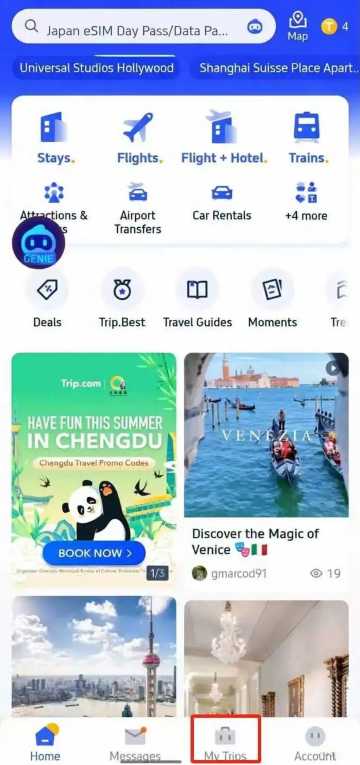
Step 1: Access Your Booking
- Open the Trip.com app and log in
- Tap “My Trips” at the bottom of the screen
- Select the flight booking you want to change
Step 2: Go to Manage My Booking
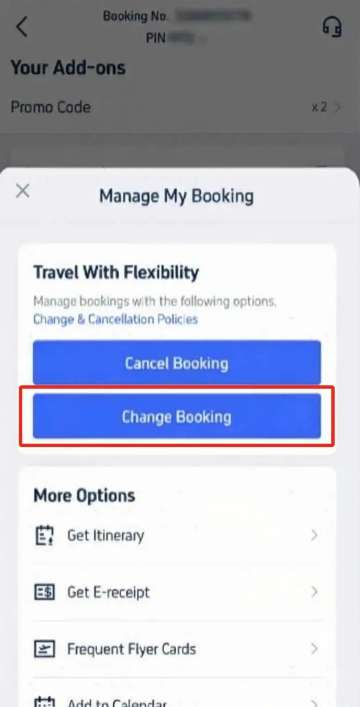
- Tap “Manage My Booking” on the reservation page
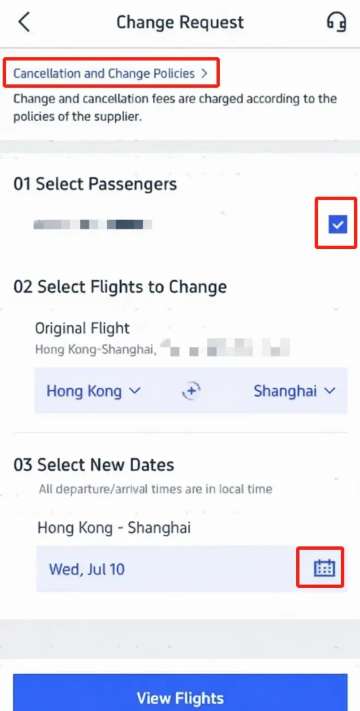
- You can also check “Cancellation & Change Policies” first to see possible fees or rules
Step 3: Submit a Change Request
Tap “Change Booking”, then follow the steps:
- Select passengers who need to change their flight
- Confirm the original flight details to make sure it is correct
- Choose a new travel date using the calendar
- Tap “View Flights” to see available options
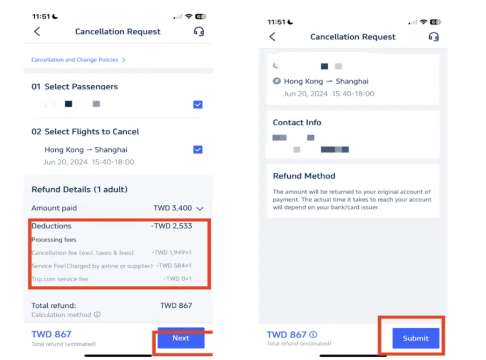
Step 4: Choose a New Flight
- Browse the available flights
- Use filters like non stop or lowest price to make searching easier
- Select your preferred flight and choose the cabin class, such as Economy or Business
Step 5: Confirm and Pay
- Review the price difference if the new flight costs more
- Tap “Confirm” and complete the payment
- Check your email for the updated booking confirmation and refund details if applicable
How to Change a Hotel Booking on Trip.com
Changing a hotel booking on Trip.com is usually easier than changing a flight. In many cases, travelers simply cancel the booking and make a new reservation with the correct dates.
Step 1: Find Your Hotel Booking
- Open the Trip.com app or website and log in
- Go to My Trips or Account → All Bookings
- Look for the hotel reservation you want to update
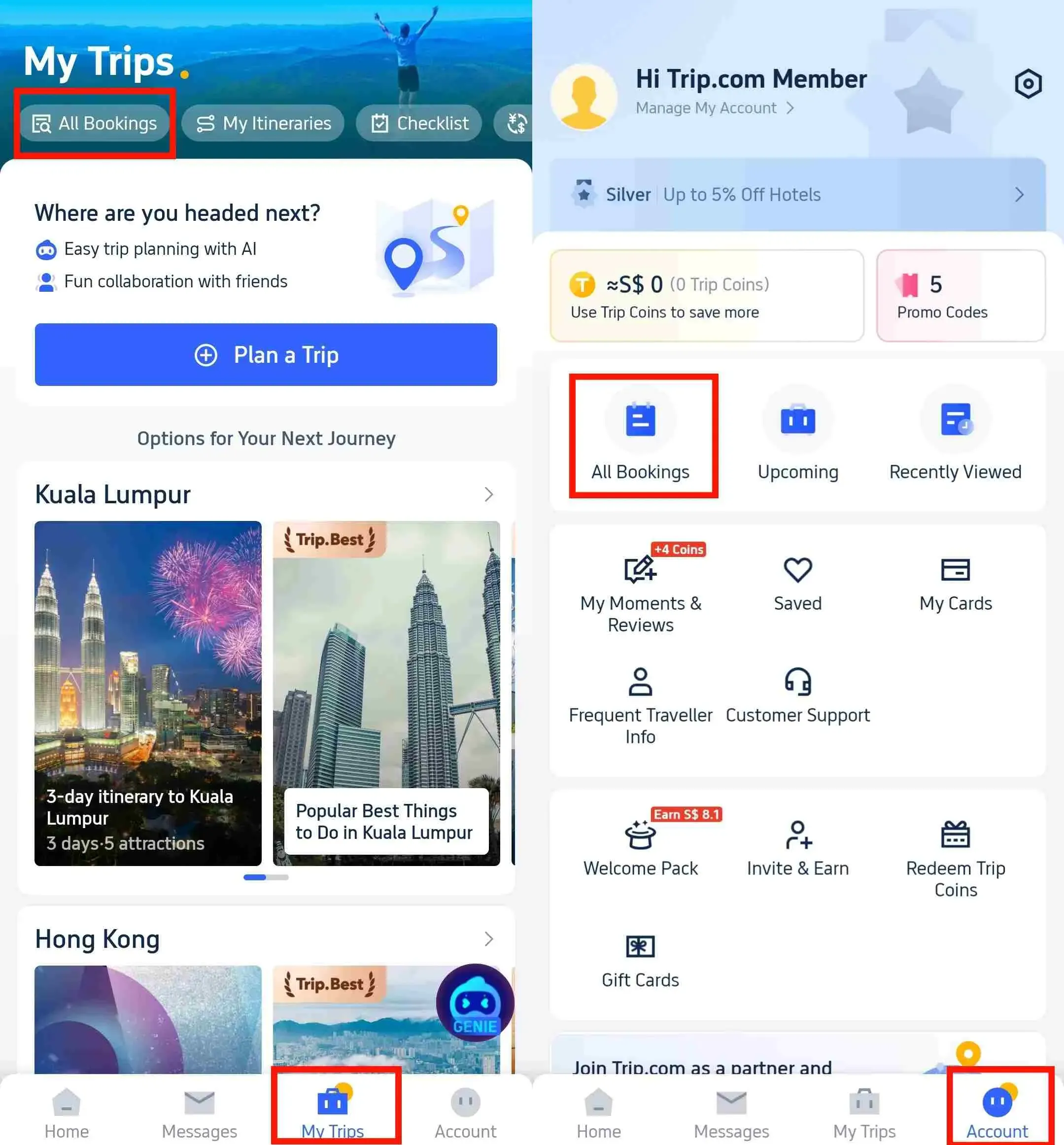
Step 2: Cancel the Current Booking
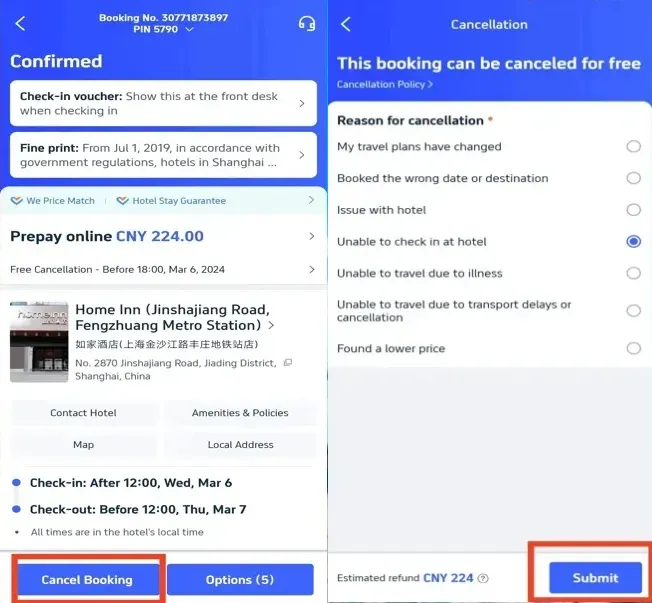
- Tap "Cancel Booking"
- Check the "cancellation policy" shown on the screen to see if it is refundable
- Select a reason for canceling, then tap "Submit"
- Review the refund details and confirm the cancellation
Step 3: Book the Hotel Again
- After canceling, search for the hotel again on Trip.com
- Choose the new dates or room type you prefer
- Complete the new booking
You can check the refund progress anytime under My Trips → Refund Status. Refunds usually appear within about one business day, depending on your payment method.
 NO.1
NO.1





















































How to Change Train Bookings on Trip.com
Changing train tickets depends on whether you already collected the ticket and how close it is to the departure time. Rules may also vary by railway company, so always check the change policy in your booking first.
Case 1: Ticket Not Collected and More Than 35 Minutes Before Departure
You can change the ticket directly in the Trip.com app.
- Open the Trip.com app and go to My Trips
- Select Train Orders and find your booking
- Tap Change or Refund
- Follow the steps to choose a new train
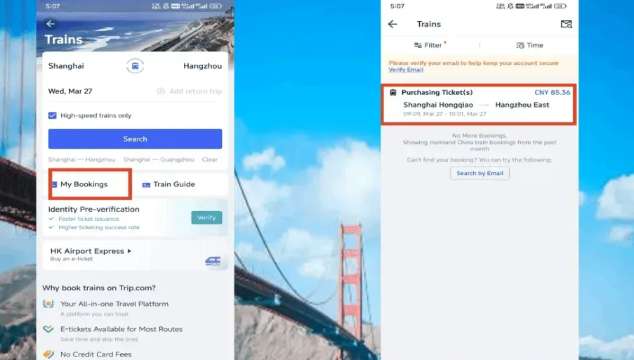
Important things to know:
- If it is more than 48 hours before departure, you can usually change to any train available for sale.
- If it is within 48 hours before departure, you may change to another train on the same day for free.
- You may also change to a train on the next day or later, but a change fee may apply.
After confirming, you will receive the updated e-ticket in the app.
Case 2: Ticket Already Collected or Close to Departure
In this situation, it is usually easier to change the ticket at the train station.
Bring these items:
- Your original train ticket
- The ID used for booking, such as your passport
Go to the ticket change counter at the station. Tell the staff you want to modify your ticket and they will show you available trains.
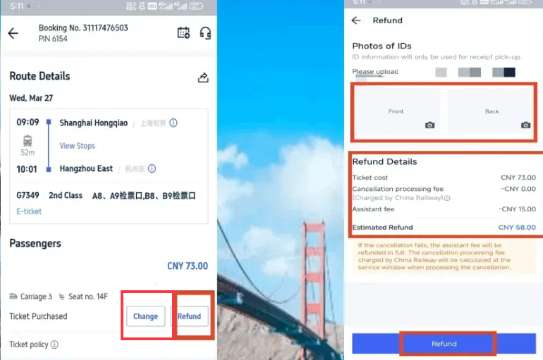
Important Train Change Rules
- You can usually change to another train on the same day for free.
- You may change to a train on the next day or later, but a change fee may apply.
- Changes are usually not allowed after 24:00 on the original departure day.
- If the new ticket is cheaper, you may receive a refund for the price difference.
- Some railway operators may charge a change fee depending on timing and ticket rules.
How to Avoid Trip.com Booking Change Fees
No one likes paying extra just to change a booking. The good news is there are simple ways to reduce or even avoid these fees if you plan carefully.
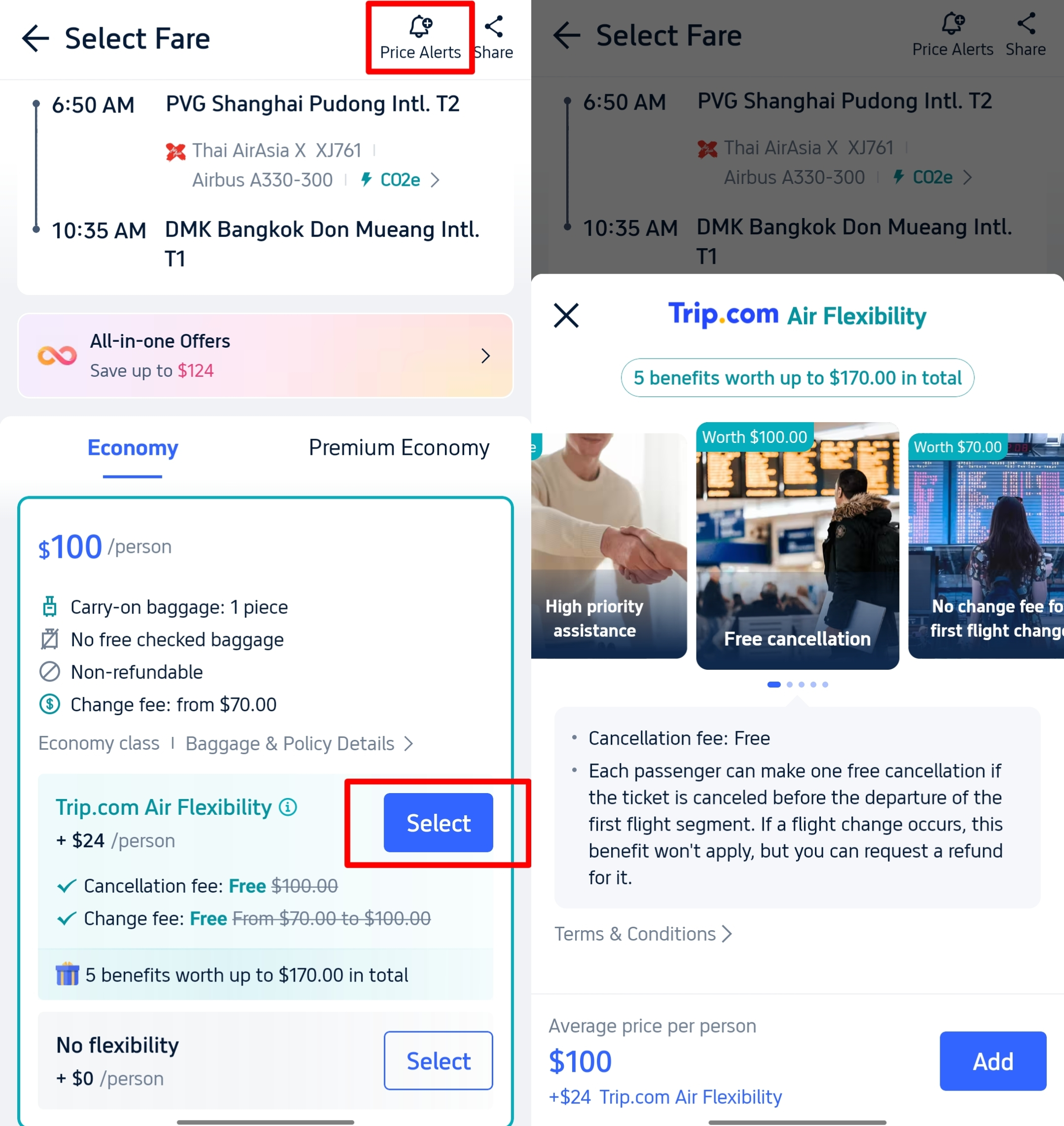
1. Choose Flexible Options When Booking
- Flights: Look for flexible flight tickets or add options like Air Flexibility when booking. This can allow date changes with little or no penalty.
- Hotels: Check for the Free Cancellation label when choosing a hotel. This lets you cancel or adjust your booking within the allowed time, often up to 24 hours before check in.
2. Make Changes Early
If your plans change, try to update your booking as soon as possible. Last minute changes often cost more and some options may no longer be available.
3. Watch for Trip.com Promotions
Trip.com sometimes runs promotions that reduce or remove change fees. You can check the Deals section in the app or sign up for email alerts so you do not miss these offers.
How Much Do Trip.com Booking Change Fees Cost?
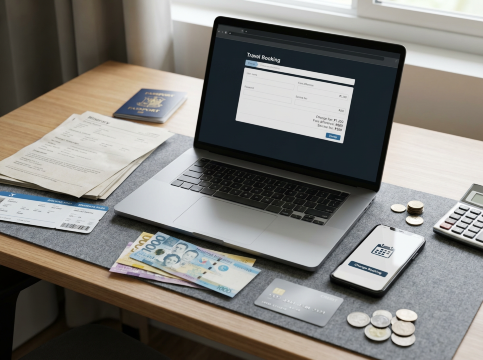
The cost of changing a booking on Trip.com depends on the airline, hotel, or train operator. Fees are different for each service, so always check your booking details before making changes.
Flights
Airline change fees may range from around ₱1,600 to ₱11,000+, depending on the airline and ticket type. However, many major full-service airlines may offer no change fee for selected standard economy or higher fares. Fare differences may still apply if the new flight is more expensive.
Hotels
You can check the refund progress anytime under My Trips → Refund Status. Trip.com usually processes refund requests within 1 business day, but the actual refund may take around 3 to 15 working days to arrive, depending on your payment method and bank. Credit card refunds may take longer.
Trains
Train change fees depend on the railway company, timing, and new travel date. For China Railway, same-day train changes may be free, but changing to a train on the next day or later may include a fee. Always check the exact fee in the Trip.com app before confirming the change.
Trip.com Service Fees
In some cases, Trip.com may charge a small processing fee when helping with the change. This may be around ₱270 to ₱1,100, and the exact amount will be shown before you confirm the change.
Flight Compensation Claims
Flight refunds, booking changes, and flight compensation are different. If your flight is delayed, cancelled, or disrupted, any compensation claim should be handled through AirHelp+, not directly through Trip.com.
Trip.com can help you check your booking details, airline policies, refund status, or change options. However, travelers should not submit flight compensation claims directly through Trip.com. For eligible compensation cases, please use AirHelp+ to start and manage the claim process.
Trip.com Booking Change Rules and Customer Support

Before changing your booking on Trip.com, there are a few important things travelers should know. These rules usually apply to flights, hotels, and train bookings.
Common Rules to Remember
- Name changes are usually not allowed. You normally cannot transfer a booking to another person. Small corrections, like fixing a spelling mistake in the passenger’s name, may be possible depending on the airline or hotel policy.
- Changes must be done before the trip starts. You cannot modify a booking after the flight has already departed or after you have checked in at the hotel.
- You will receive email confirmations. After the change is completed, Trip.com will send you an updated booking confirmation. If there is a refund, you will also receive a separate email. The refund time depends on your bank or card provider.
- Flights usually must stay with the same airline. When changing flights, you normally need to choose another flight from the same airline or one of its partner airlines. Switching to a completely different airline is usually not allowed.
Need Help?
📱 Enjoy app-only deals and a new user package with special offers on hotels, trains, attractions, and airport transfers.
FAQs About Changing Bookings on Trip.com
-
Can I change my Trip.com booking after I confirm it?<br>
-
Can I change the passenger name on a Trip.com flight ticket?<br>
-
Can I change my travel date on Trip.com?<br>
-
What happens if the new flight or hotel costs more?<br>
-
How long does it take to receive a refund after a change?<br>
Trending Searches
-
Popular Content
-
Top Flight Links
-
Popular Hotels
-
Popular Things to Do
-
Featured guides
-
Trip.com links
- Trip.com E-Ticket
- Trip.com Payment Methods
- Trip.com Passport Change
- Trip.com Customer Service
- Trip.com Flight Cancellation
- Trip.com VIP Lounge Access
- Trip.com Phone Number
- Trip.com Check In
- Payment Sale
- Trip Coins
- Trip.com Hotel Refund
- Trip.com Cancellation Policy
- Trip.com Ticket Issued Status
- Trip.com Flight Ticket
- Trip.com Membership
- Trip.com E-Receipt
- Trip.com Seat Selection
- Trip.com Baggage Allowance
- Trip.com Flight Change
- Trip.com Reviews
- Flights from Manila to Hong Kong
- Flights from Manila to Cebu
- Flights from Manila to Tagbilaran
- Flights from Manila to Iloilo City
- Flights from Manila to General Santos
- Flights from Cebu to Manila
- Flights from Bacolod to Manila
- Flights from Manila to Tacloban
- CA986 Flight Status
- EK2521 Flight Status
- 5J187 Flight Status
- PR431 Flight Status
- PR741 Flight Status
- MH709 Flight Status
- 5J582 Flight Status
- Hotels near 72 wonder tower
- Hotels near Mactan–Cebu International Airport
- Hotels near Fenghuang Ancient Town
- Hotels near Greenland Xindu East Coast Times Square South Area
- Hotels near Changbai Mountain Beauty Pine International Sculpture Park
- Shiji Qingteng Capsule Hotel (T3 Terminal)
- Bangkok-Pratunam Hotel
- Shangri-La Resort
- De Mani Hotel
- Alta Vista de Boracay
- Hotels in Fenghuang County
- Hotels in Davao City
- Hotels in North Jakarta
- Hotels in Moscow
- Hotels in Seoul
- Philippines 5G eSIM | Dual Network • All AI & TikTok | Day Pass/Total Data Package | 24-Hour Billing | 1-30 Days | QR Code
- Private Mutianyu Great Wall Trip With English-speaking Driver
- Vietnam Airport VIP Fast Track Service
- Bangladesh Dhaka DAC Hazrat Shahjalal International Airport T1 terminal international departure IBalaka Executive Lounge international departure lounge experience
- Vietnam | 4G/5G eSIM | Daily/Data Plan | 24-hour Billing | 1-30 Days | QR code
- Huanglongjiuzhai Railway Station - Jiuzhaigou National Park shuttle bus · private charter optional
- Lantau Island Ngong Ping 360 round-trip cable car admission ticket with priority boarding + one-way urban area transfer
- European universal 5G/4G eSIM | Multi-network support, supports All AI & TikTok | 500MB/day - 50GB total | 1-90 days | 24-hour billing | QR code
- Private charter in Colombo, Sri Lanka: Negombo lagoon/elephant orphanage + Sigiriya Lion Rock | admission ticket not included
- Sperlonga: Boat Cruise to the Blue Grotto with Swimming
- Kas Kekova Boat Tour
- Levanto: Pesto-Making Class
- Amsterdam Cheese Company: Guided Cheese Tasting
- Bali Tulamben Diving Experience | Explore USAT Liberty Shipwreck | No Experience Required
- Starbucks e-beverage vouchers and combo meal vouchers
- Mothers Day Gifts
- eSIM
- Hong Kong International Airport
- International Driving Permit
- Toronto Pearson International Airport
- Universal Studios Singapore
- Great Wall of China
- UK ETA
- Narita International Airport
- China Currency
- Changi Airport
- Schengen Visa
- Singapore MRT Map
- France Visa
- Ninoy Aquino International Airport