

Trip.com Coupon Not Working? 9 Reasons & Easy Fixes

By Trip.com
November 23, 2026
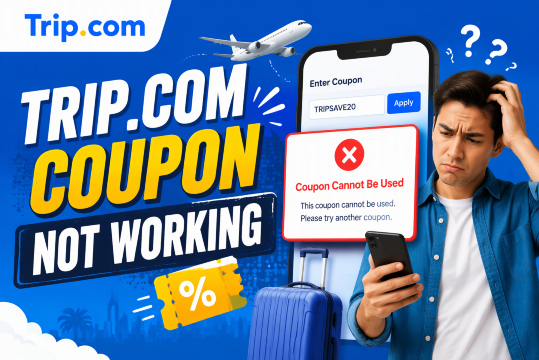
Trying to book a flight or hotel but your Trip.com coupon isn't working? It can be frustrating when a discount code gets rejected at checkout. The good news is that most coupon issues have simple explanations. Here's how to find out why your Trip.com promo code isn't working and what you can do to fix it.
Why Is My Trip.com Coupon Not Working?
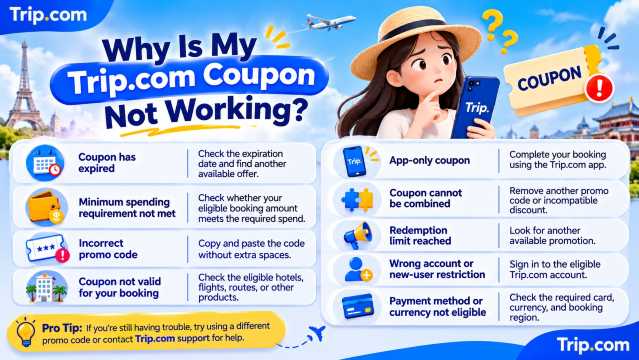
A Trip.com coupon may not work if it has expired, your booking doesn't meet the promotion requirements, or the code is restricted to certain users, payment methods, or travel products.
Some coupons also have limited redemptions or can only be used through the Trip.com app. Below are nine common reasons why your Trip.com promo code might not work and how to fix them.

9 Common Reasons Your Trip.com Coupon Is Not Working
1. Your Trip.com Coupon Has Expired
Trip.com coupons have specific validity periods. Once the expiration date passes, the coupon can no longer be used.
Some coupons are valid for a fixed number of days after claiming them, while others must be used before the promotion ends.
For example, a coupon requiring redemption within three days of claiming will no longer work after that period.
How to fix it:
- Open your Trip.com account.
- Go to Promo Codes or My Promo Codes.
- Select the coupon and check its validity period.
- Look for another available discount if it has expired.
Remember that the booking period and travel period may be different. A coupon could require you to book this month even if your flight or hotel stay is scheduled for later.
2. Your Booking Doesn't Meet the Minimum Spend
Some Trip.com promo codes require a minimum booking amount.
For example, if a coupon requires a minimum eligible spend of ₱5,000, a ₱4,500 booking would not qualify.
The minimum spending amount is determined by the specific promotion. Taxes, service fees, and optional extras may not always count toward the requirement.
How to fix it:
Check the coupon's minimum spend and compare it with your eligible booking amount.
Avoid adding unnecessary services just to qualify for a discount. Sometimes, booking without the coupon is cheaper.
3. You Entered the Wrong Promo Code
An incorrect code is another possible reason your Trip.com coupon is rejected.
Common mistakes include:
- Typing the letter O instead of the number 0.
- Confusing the number 1 with the letter I.
- Adding spaces before or after the code.
- Missing a letter or number.
- Using a code from an expired promotion.
How to fix it:
Copy the promo code directly from the official Trip.com promotion page and paste it into the coupon field.
Check that the code is entered exactly as provided before applying it again.
4. Your Coupon Doesn't Apply to Your Booking
Not every Trip.com coupon works for every travel product.
Some promotions only apply to specific airlines, hotels, destinations, room types, or booking options.
For example:
- Hotel coupons cannot normally be used for flight bookings.
- Flight coupons may exclude certain airlines or routes.
- Selected hotel discounts may only apply to prepaid reservations.
- Some attraction coupons only cover participating activities.
How to fix it:
Read the coupon's terms and conditions to confirm which bookings qualify.
For hotel reservations, try comparing eligible room rates or properties. For flights, check whether the promotion covers your selected route and airline.
5. You're Using an App-Only Coupon on the Website
Trip.com sometimes provides exclusive discounts for bookings made through its mobile app.
If a coupon is marked App Only, it may not work when you try to apply it on the desktop or mobile website.
How to fix it:
- Open the Trip.com mobile app.
- Sign in to your account.
- Find the coupon under your account.
- Select an eligible flight, hotel, or travel product.
- Apply the coupon before completing payment.
You can also check whether app-exclusive rates or promotions are available for your booking.
6. Your Coupon Is Limited to Certain Users
Some Trip.com offers are only available to new users, selected members, or customers who meet specific eligibility requirements.
For example, a first-booking coupon may not work if your account has already completed a qualifying booking.
Coupons saved to one account may also be unavailable when you're signed in to another account.
How to fix it:
Check whether the promotion is available to new users, existing users, or selected account holders.
Make sure you're signed in to the same Trip.com account where you claimed the coupon.
7. Your Coupon Cannot Be Combined with Another Promotion
Many Trip.com promo codes cannot be combined with other promotional codes or discounts.
If another coupon is already applied, the system may reject the second code.
However, the rules for combining promo codes with member rates, Trip Coins, or other benefits can vary.
How to fix it:
Remove the existing promotional code and try applying the new one.
Compare the final booking prices to determine which option gives you better savings.
8. The Coupon Has Reached Its Redemption Limit
Some Trip.com promotions have limited coupon quantities.
These offers may operate on a first-come, first-served basis. Even if the promotion has not expired, the available redemption quota may already be used up.
This is particularly important during major campaigns and flash sales.
How to fix it:
Check whether the promotion is still accepting redemptions.
If the coupon is no longer available, look for other offers through the Trip.com promo page.
9. Your Payment Method, Currency, or Region Is Not Eligible
Some Trip.com promotions are restricted to specific payment cards, currencies, countries, or booking channels.
This is particularly relevant for bank and credit card promotions in the Philippines.
For example, selected Visa promotions may require:
- An eligible Visa credit or debit card.
- Payment through a specified promotion page.
- A supported payment currency.
- A booking that meets the campaign's requirements.
- Available coupon redemption quota.
How to fix it:
Check the payment requirements before proceeding.
If you're using a Philippine credit or debit card, confirm that your card and issuing bank qualify for the promotion.
You can also review the official Trip.com Visa promotions for the applicable conditions.
How to Use a Trip.com Promo Code Correctly
If your coupon is valid, follow these steps to apply it when booking.
Step 1: Sign In to Your Trip.com Account
Visit Trip.com or open the Trip.com app.
Sign in using the account associated with your coupon.
Step 2: Find Your Available Coupons
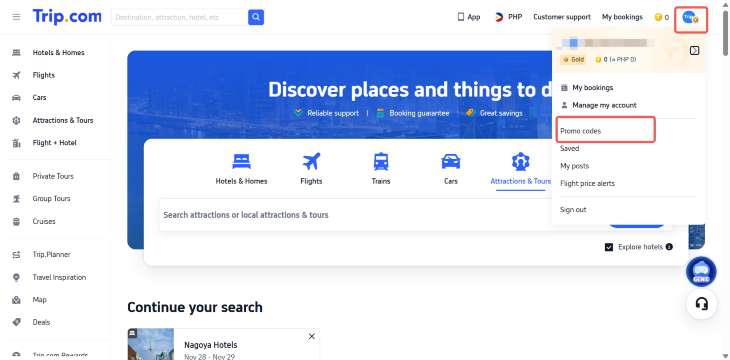
Open your account and look for Promo Codes or My Promo Codes.
Check which coupons are available and read their conditions.
Some promotional codes must be claimed or added to your account before use.
Step 3: Select an Eligible Booking
Search for the flight, hotel, or travel product you want to book.
Make sure your selection meets the coupon's requirements, including booking dates, eligible products, and minimum spend.
Step 4: Apply Your Coupon
Continue to the booking or payment page.
Find the promotional code section and either select a saved coupon or enter the code manually.
The available options may differ depending on the product and promotion.
Step 5: Check Your Discount
Before making payment, review the booking summary.
Make sure the coupon has been applied and the final amount reflects the discount.
If the price hasn't changed, check the coupon conditions again.
Step 6: Complete Your Booking
Once the discount appears correctly, proceed with payment.
After booking, check your confirmation details to verify the amount charged.
⚠️ Important: Trip.com promo codes generally must be applied before completing payment. You usually cannot add a coupon to an already-paid booking.
 NO.1
















































































What to Do If Your Trip.com Coupon Still Doesn't Work
If you've checked the conditions and the promo code is still being rejected, try these troubleshooting steps.
Check Your Trip.com Account
Make sure you're using the correct account and that your coupon is still available.
If the coupon doesn't appear, verify whether it was successfully claimed and whether it has expired.
Try the Trip.com App
If you're using the website, check whether the promotion requires an app booking.
You can also try signing in again or reopening the booking page if it isn't displaying the correct coupon information.
Review the Final Booking Amount
Some coupons only apply to a portion of the booking price or have a maximum discount amount.
For example, a percentage-based coupon with a discount cap may provide a smaller reduction than expected.
Check the detailed price breakdown before assuming the coupon has failed.
Contact Trip.com Customer Support
If the problem continues, contact Trip.com customer support for assistance.
You can reach support through the official website or mobile app.
When contacting the support team, prepare the following information:
- Your Trip.com account details.
- The promo code you're trying to use.
- A screenshot of the error message.
- Your selected travel product and booking dates.
- The promotion page or coupon conditions.
Visit Trip.com Customer Support to access chat or phone support.
Can You Use a Trip.com Coupon After Booking?
Generally, you cannot apply a Trip.com promo code after a booking has already been paid for.
Coupons should be applied during the booking process, before payment is completed.
If you forgot to enter the code, you may consider making another reservation, but first check the cancellation conditions of your existing booking.
Flights and hotels may have different refund rules. Canceling a nonrefundable reservation could cost more than the coupon would save.
⚠️ Important: Don't cancel an existing booking just to use a coupon without checking the refund amount, cancellation fees, and current prices.
Will Your Trip.com Coupon Be Returned After Cancellation?
Whether a coupon is returned depends on the specific promotion.
Some campaigns allow eligible promo codes to return to your Trip.com account if a reservation is canceled, payment fails, or the booking is not completed.
Other promotions consider the coupon used once it has been applied to a booking, even if the reservation is later canceled.
If a coupon is returned, it may still need to be used within its original validity period.
Always read the relevant promotional terms before canceling a booking.







Tips for Filipino Travelers Using Trip.com Coupons
Before using a Trip.com coupon, check a few details to avoid booking problems and make the most of available discounts.
- Compare Final Prices: Check the total booking amount after applying the coupon, including taxes and fees, to see how much you're actually saving.
- Check Payment Options: Some promotions require eligible Philippine credit cards, debit cards, or specific payment methods.
- Review Coupon Validity: Check the expiration date, eligible travel dates, and booking requirements before using a coupon.
- Save Coupon Details: Keep a screenshot of the promo code and its terms in case you need assistance from Trip.com customer support.
- Look for App-Exclusive Deals: Some discounts are only available through the Trip.com app.
- Check Before Paying: Make sure the discount appears in your booking summary before completing payment.
- Compare Other Promotions: Check available flight and hotel offers to see whether another discount provides better savings.
FAQs About Trip.com Coupons Not Working
-
Why is my Trip.com promo code not working?
-
Why is my Trip.com coupon invalid even though it hasn't expired?
-
Can I use two Trip.com coupons on one booking?
-
Will I get my Trip.com coupon back if I cancel my booking?
-
Why is my Trip.com coupon not showing in my account?