

Trip.com Login: How to Sign In and Check Bookings

By Trip.com
November 23, 2026

Trying to log in to Trip.com but can't access your account? Whether you're using the website or mobile app, signing in is simple. You can also check certain bookings without registering. This guide explains how to log in, manage your reservations, and fix common login problems.
How to Log In to the Trip.com Website
You can log in to your Trip.com account through the official website to check your bookings, manage reservations, and access membership benefits.
Step 1: Open the Trip.com Website
Visit the official Trip.com website using your browser.
Step 2: Click Sign in/Register
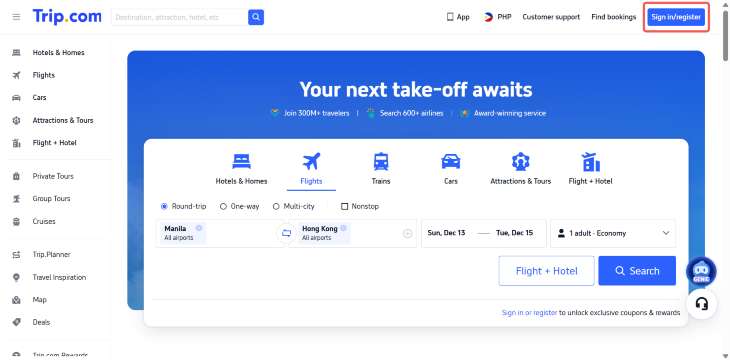
Find the Sign in / register option in the upper-right corner of the homepage and click it to open the login screen.
Step 3: Enter Your Login Details
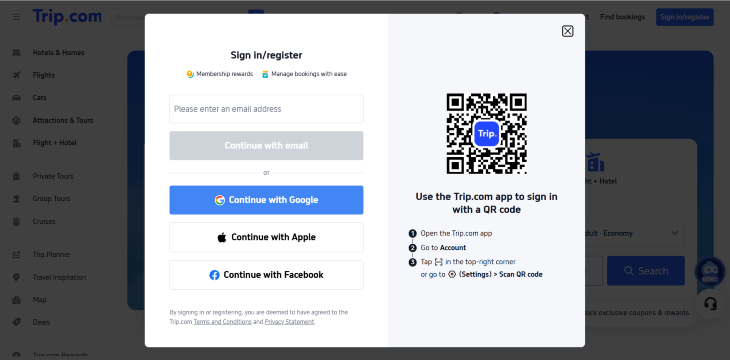
Enter your registered email address or phone number. You can also select a supported login method, such as Google or Apple ID, if available.
Step 4: Enter Your Password or Verification Code
Enter your password or the verification code sent to your registered email address or phone number, depending on the login method.
Step 5: Access Your Trip.com Account
Follow the on-screen instructions to complete the login process. Once logged in, click your account icon in the upper-right corner to view your booking history, account settings, and membership information.
💡 Note: Always use the same login method you used when registering to make sure you access the correct account.

How to Log In to the Trip.com App
The Trip.com mobile app makes it easy to access your bookings, manage reservations, and check membership benefits while traveling.
Step 1: Open the Trip.com App
Launch the Trip.com app on your smartphone. If you haven't installed it yet, download it from the App Store or Google Play.
Step 2: Go to Sign In
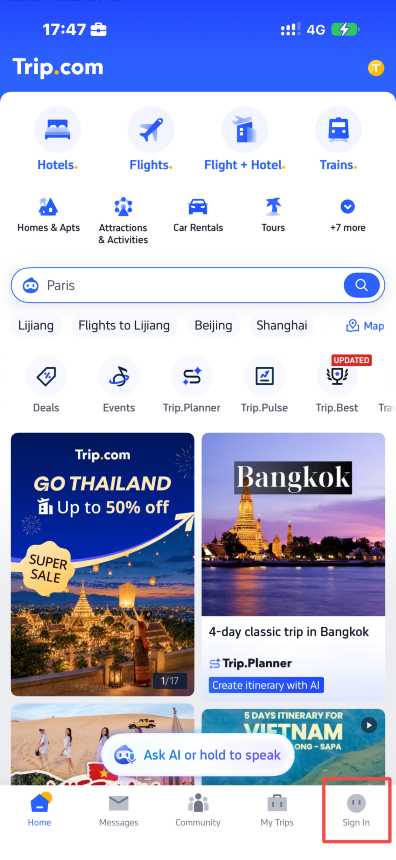
Tap Account at the bottom of the app's homepage to open your account section.
Step 3: Select Sign in/Register
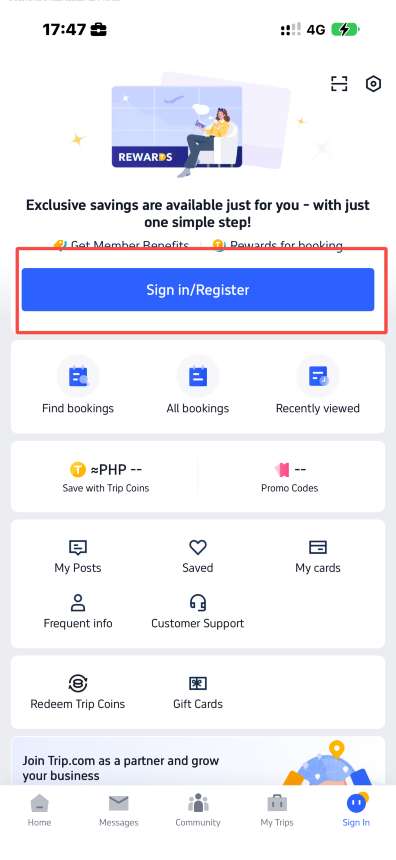
Tap Sign in / register to access the login screen.
Step 4: Choose Your Login Method
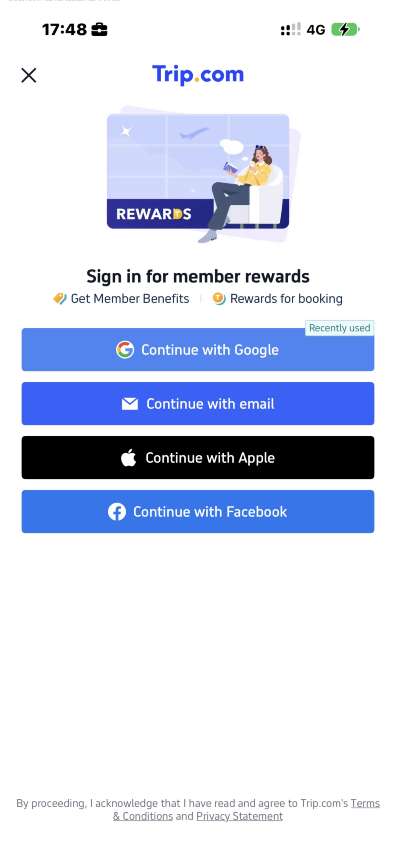
Select your registered email address, phone number, or an available linked account such as Google, Apple ID, Facebook, or LINE.
Step 5: Enter Your Login Details
Enter your password or verification code if requested. Follow any additional verification instructions displayed on the screen.
Step 6: Check Your Trip.com Account
Once you've successfully logged in, you can view your bookings, manage travel plans, check available coupons, and access membership rewards.
💡 Note: If you have a referral code, look for the referral code option during registration, if available.
What Can You Do After Logging In to Trip.com?
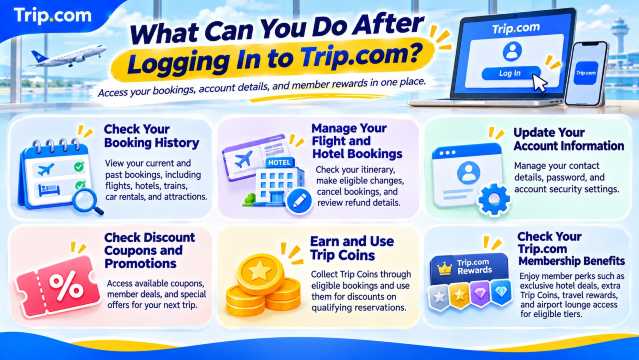
Logging in to Trip.com gives you access to your reservations, personal information, and available membership rewards.
Check Your Booking History
You can view your current and previous bookings, including eligible flights, hotels, train tickets, car rentals, and attractions.
Your booking details may include confirmation information, travel dates, payment details, and reservation status.
Manage Your Flight and Hotel Bookings
Depending on the booking conditions, you may be able to:
- Check your booking confirmation and itinerary.
- Request changes to eligible reservations.
- Cancel bookings according to the applicable cancellation policy.
- Review refund information and booking conditions.
- Contact customer support about an existing reservation.
Changes and cancellations depend on the booking rules and supplier conditions.
Update Your Account Information
You can manage your registered information through your Trip.com account settings.
Depending on the available options, you may be able to update your contact information, password, and account security settings.
Check Discount Coupons and Promotions
Trip.com members can access available coupons, promotional offers, and selected member deals.
Remember to review each coupon's validity period, eligibility requirements, and booking conditions.
Earn and Use Trip Coins
Trip Coins are part of the Trip.com Rewards program.
Members can earn Trip Coins through eligible bookings and selected activities. Available Trip Coins can be used toward discounts on qualifying bookings.
The amount earned depends on factors such as booking type, amount paid, and membership tier.
Check Your Trip.com Membership Benefits
Trip.com Rewards offers different membership tiers, including Silver, Gold, Platinum, Diamond, Diamond+, and Black Diamond.
Depending on your membership tier and eligibility, benefits may include:
- Member-exclusive hotel deals.
- Additional Trip Coins.
- Selected travel rewards.
- Airport lounge access for eligible members.
- Other membership benefits and promotions.
Benefits vary by tier and may be subject to additional conditions.
 NO.1


















































































What to Do If You Can't Log In to Trip.com
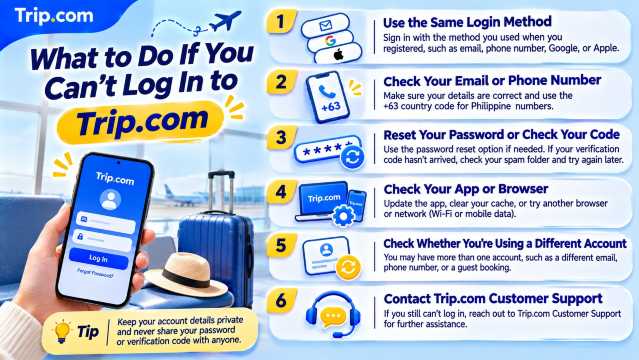
Having trouble signing in? There are several possible reasons, including incorrect login details, verification issues, or using a different account.
Try the following solutions.
1. Use the Same Login Method You Registered With
Trip.com supports different registration and login methods.
For example, if you originally registered using an Apple ID but attempt to log in using a different email account, you might not access the same Trip.com profile.
Check which method you used when registering and sign in using that option.
If you're unsure, search your email inbox for previous Trip.com registration messages or booking confirmations.
2. Check Your Email Address or Phone Number
Make sure you entered your login details correctly.
- Check for typing errors or extra spaces.
- Confirm that you're using the correct email address.
- Check the selected country code when using a phone number.
- Follow the phone number format shown on the login screen.
- Try another email address if you have multiple accounts.
For Filipino travelers using a Philippine phone number, confirm that the correct +63 country code is selected when required.
3. Reset Your Password or Check Your Verification Code
If you've forgotten your password, use the password reset option on the Trip.com login screen.
Follow the instructions to verify your identity and set a new password.
If your verification code hasn't arrived, try these steps:
- Check your email spam or junk folder.
- Confirm your registered email address or phone number.
- Check whether your phone can receive SMS messages.
- Avoid requesting multiple codes too quickly.
- Make sure your internet connection is stable.
- Use the latest valid verification code you received.
Verification codes can expire, so enter the code within the time indicated on the screen.
4. Check Your App or Browser
Temporary technical problems can sometimes prevent you from signing in.
Try the following:
- Close and reopen the Trip.com app.
- Update the app to the latest version.
- Restart your smartphone.
- Clear your browser cache and cookies.
- Try another browser or device.
- Switch between Wi-Fi and mobile data.
If a VPN or browser extension is interfering with the login page, checking your connection without it may help.
5. Check Whether You're Using a Different Account
Sometimes you can successfully log in but still cannot see your reservations.
This may happen if:
- You signed up using one email address but logged in with another.
- You used Apple's Hide My Email feature.
- You created separate accounts with your phone number and email address.
- Your booking was made through a family member's account.
- You completed your reservation as a guest.
Creating another account does not automatically transfer your previous reservations.
Check the contact email address and booking number in your original confirmation message.
6. Contact Trip.com Customer Support
If you're still unable to access your account, contact Trip.com Customer Support.
Explain your login problem and provide the relevant booking information if requested.
Never share your password or verification codes with anyone.
How to Check Your Trip.com Booking Without Logging In
You may still be able to check your reservation even if you booked through Trip.com without creating a member account.
Trip.com provides booking lookup and customer support options for travelers who need help accessing their reservations.
Steps to Find a Guest Booking
- Open the Trip.com website or mobile app.
- Visit the booking lookup section or Customer Support page.
- Select Search Bookings or the equivalent available option.
- Enter the requested booking information, such as your email address or booking number.
- Complete any verification required on the screen.
- View your booking details if the reservation is successfully located.
Depending on the booking lookup method, you may be asked for an email verification code or additional booking details.
If you cannot locate your reservation, check your booking confirmation email for the correct reference number.
You can also contact Trip.com Customer Support for assistance.
📝 Pro Tip: Save your Trip.com booking confirmation email and reservation number before traveling. These details can help you retrieve your booking or contact customer support if you're unable to log in.
FAQs About Trip.com Login
-
Can I log in to Trip.com using my phone number?
-
What should I do if I forgot my Trip.com password?
-
Why can't I see my bookings after logging in?
-
Is creating a Trip.com account free?
-
Can I manage my flight and hotel bookings after logging in?