

How to Change Email Address on Trip.com App & Website

By Trip.com
November 17, 2026

Need to change your email address on Trip.com? Whether you've switched email providers, entered the wrong address, or stopped receiving booking confirmations, keeping your contact information updated is important. This guide explains how Filipino travelers can update their Trip.com email address, complete verification, and fix common email problems.
Can You Change Your Email Address on Trip.com?
Yes. You can update the email address linked to your Trip.com account through the official website. You may need to verify your identity before completing the change.
However, Trip.com uses email addresses for different purposes.
| Email Type | What It Is Used For |
|---|---|
Account Email | Signing in, account verification, and security notifications |
Traveler Contact Email | Contact details saved for future bookings |
Booking Contact Email | Receiving notifications and updates related to a specific reservation |
⚠️ Important: Changing your account email does not necessarily update the contact email on existing bookings.

How to Change Your Email Address on the Trip.com Website
The Trip.com website allows you to manage your account information and update your registered email address.
Step 1: Log In to Your Trip.com Account
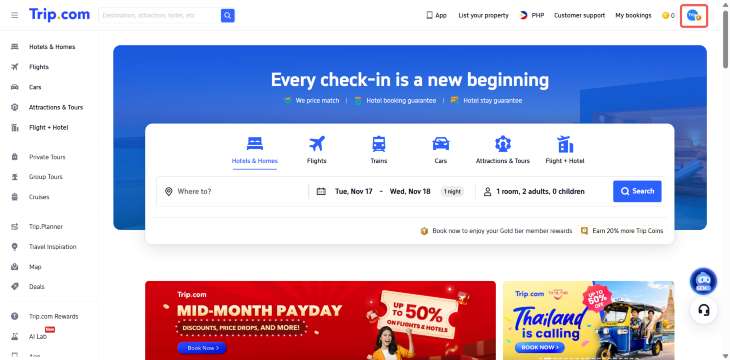
Visit the official Trip.com website and sign in using your existing account credentials.
After logging in, click your profile icon in the upper-right corner.
Step 2: Open Manage Account
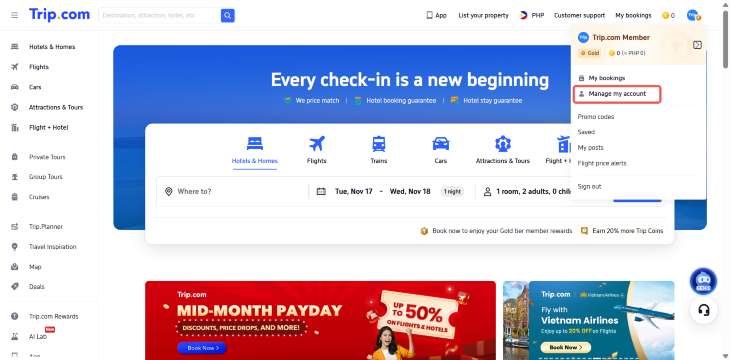
From the account menu, select Manage Account.
This section allows you to review your account information and security settings.
Step 3: Find Your Registered Email Address
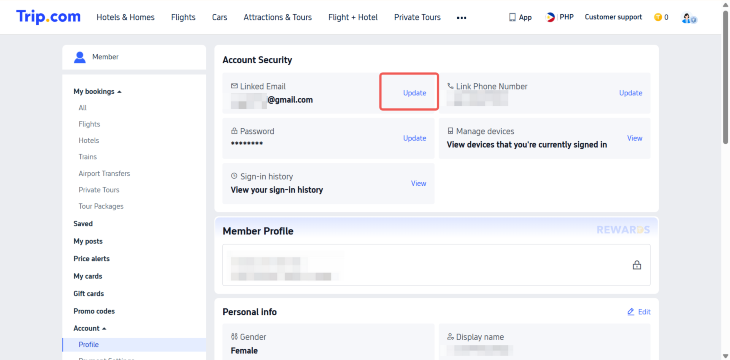
Look for the Security or Account Security section.
Find your registered email address and select Update or Change, depending on the options displayed.
Step 4: Request a Verification Code
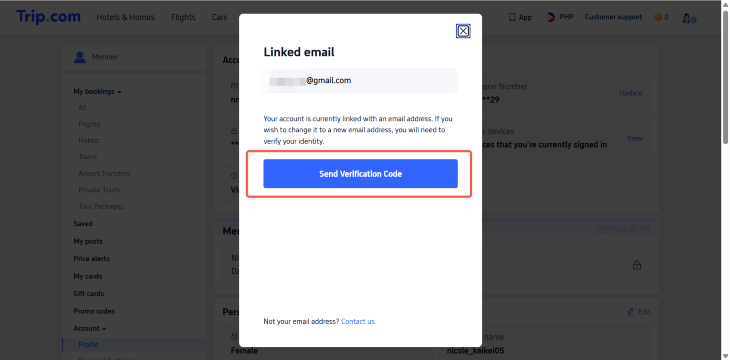
Trip.com may ask you to verify your identity before changing your email address.
Select Send Verification Code and check the inbox associated with your existing account.
Step 5: Complete Email Verification
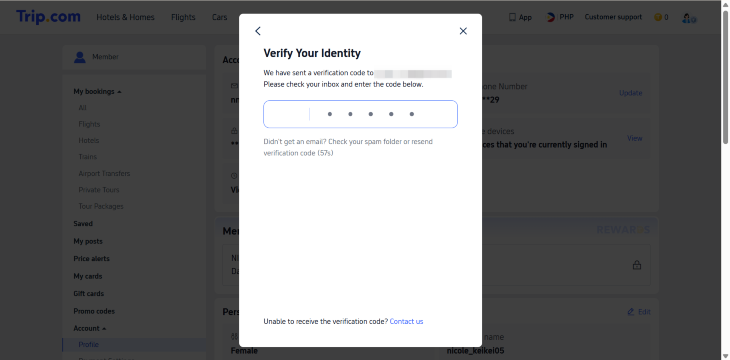
Enter the verification code and follow the instructions on the screen.
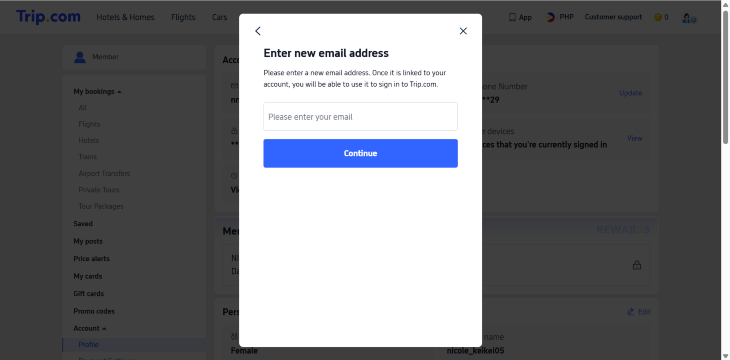
Once your identity is verified, enter your new email address when prompted. Complete any additional verification required to save the change.
Step 6: Confirm Your New Email Address
Return to your account settings and check whether your new email address appears.
If the old address is still displayed, try signing out and logging back in.
💡 Pro Tip: Make sure your new email address is active and accessible before updating your Trip.com account. You'll need it for future verification and account-related notifications.
How to Change Your Email Address on the Trip.com App
You can change your registered email address directly through the Trip.com mobile app. Follow these steps to update your account information.
Step 1: Open the Trip.com App
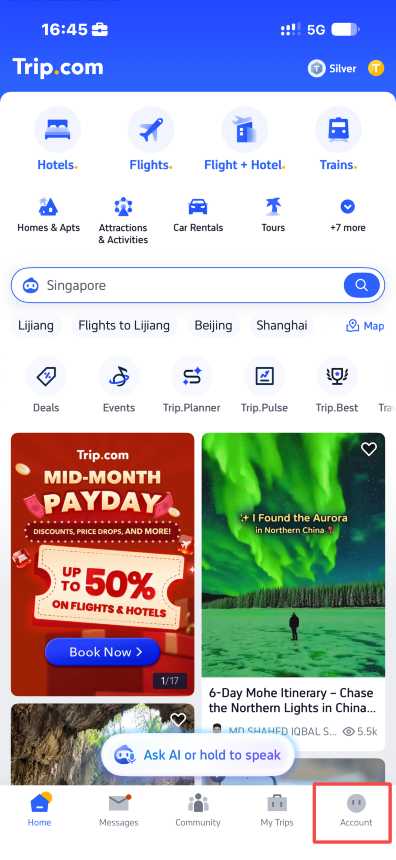
Launch the Trip.com app on your smartphone and sign in to your account.
Tap Account in the bottom-right corner of the screen.
Step 2: Go to Account Settings
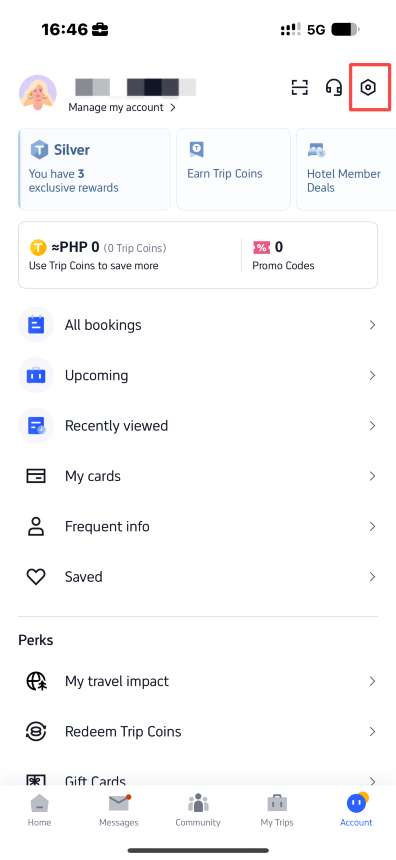
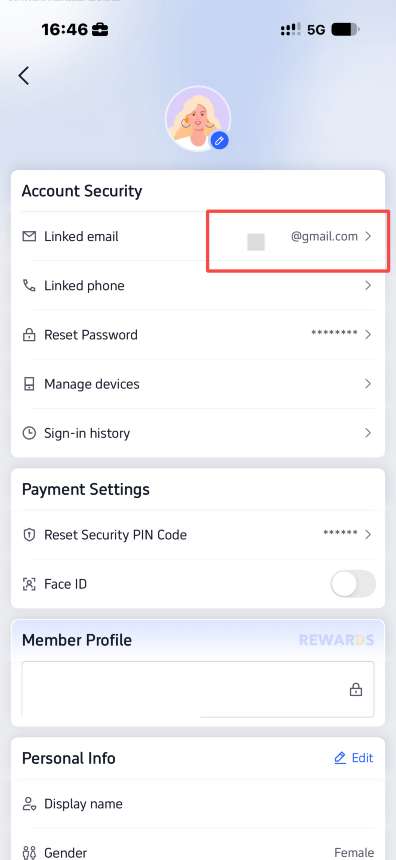
On the Account page, tap the Settings icon in the upper-right corner.
Under Account Security, find and select Linked email.
Step 3: Request a Verification Code
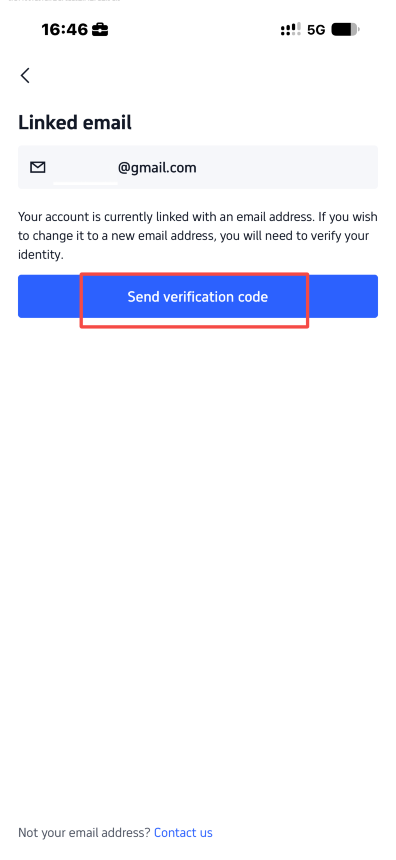
Your current registered email address will appear on the screen.
Tap Send verification code to verify your identity before making changes.
Step 4: Verify Your Identity
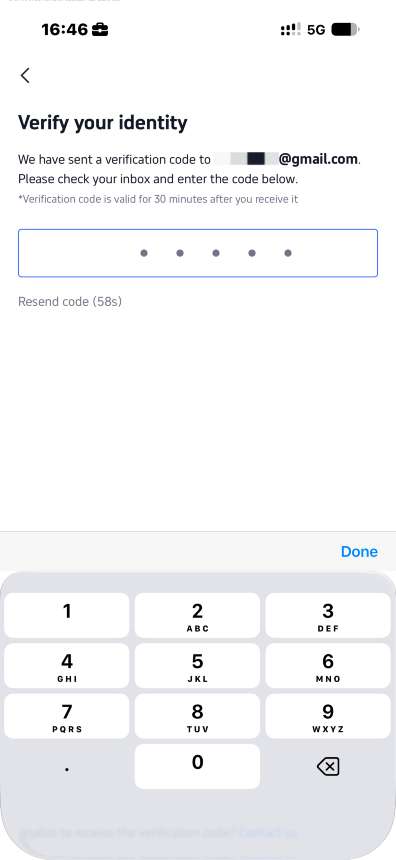
Check your existing email inbox for the verification code sent by Trip.com.
Enter the 5-digit verification code in the app. The code is valid for 30 minutes after you receive it.
If you don't receive the code, check your spam folder or select Resend code when available.
Step 5: Enter Your New Email Address
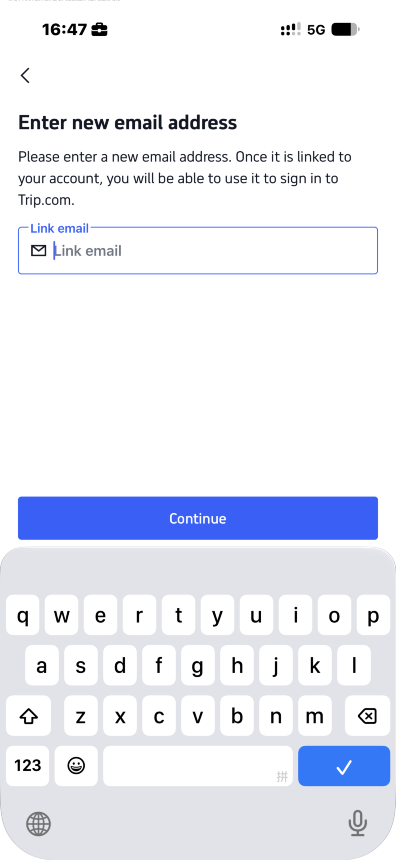
After completing verification, you'll be directed to the Enter new email address page.
Type your new email address into the Link email field and tap Continue.
Step 6: Complete the Email Change
Follow any additional instructions displayed in the app to complete the process.
Once your new email address is successfully linked, you can use it to sign in to your Trip.com account.
 NO.1







































































How to Change the Email Address on an Existing Trip.com Booking
Entered the wrong email address when booking a flight or hotel? You may need to update the contact details for that reservation separately.
Here's what to do:
- Log in to your Trip.com account.
- Go to My Bookings.
- Select the flight, hotel, or other reservation.
- Review the contact email shown in your booking details.
- Check whether a contact information editing option is available.
- If you cannot make changes, contact Trip.com Customer Support.
You may need to provide your booking number and other details to verify your reservation.
📝 Note: Updating your account email does not automatically guarantee that an existing reservation's email address will change. Always review the booking details separately.
What If You Cannot Change Your Trip.com Email Address?
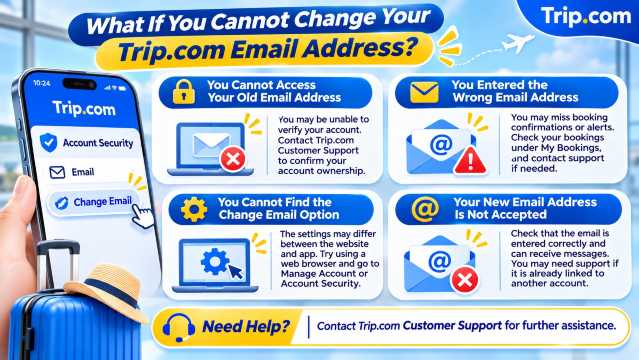
If you cannot update your email address, the issue may be related to account verification, login settings, or your current email provider.
You Cannot Access Your Old Email Address
Trip.com may send a verification code to the email address currently linked to your account.
If you no longer have access to that inbox, you may be unable to complete the verification process.
Contact Trip.com Customer Support and follow the instructions for verifying account ownership.
You Entered the Wrong Email Address
An incorrect email address may prevent you from receiving booking confirmations or account notifications.
Log in to your Trip.com account and check your reservations under My Bookings.
If you cannot find your booking, contact customer support before making another reservation.
You Cannot Find the Change Email Option
The available settings may differ between the website and app.
Try accessing Trip.com through a web browser and opening Manage Account or Account Security.
If the option is still unavailable, request assistance from customer support.
Your New Email Address Is Not Accepted
Check that the email address is entered correctly and that you can access the inbox.
If Trip.com displays an error, follow the instructions shown. You may need customer support assistance if the email is already associated with another account or cannot be verified.
What to Do If You Are Not Receiving Emails From Trip.com
Sometimes, confirmation emails or verification codes may not appear immediately.
Check Your Spam or Junk Folder
Open your spam, junk, and promotions folders to see whether Trip.com emails were filtered.
Double-Check Your Email Address
Make sure your registered email address is spelled correctly.
Even a small typing mistake can prevent important notifications from reaching your inbox.
Check Your Email Storage
A full mailbox may prevent new messages from arriving.
Delete unnecessary emails or free up storage if needed.
Review Blocked Senders
Check whether your email provider has blocked or filtered messages from Trip.com.
Request Another Verification Code
If a resend option is available, follow the on-screen instructions to request another code.
Avoid repeatedly requesting codes without checking your inbox and spam folders first.
Check Your Booking Status
If your booking confirmation email is missing, sign in to Trip.com and review your booking history.
⚠️ Important: Not receiving a confirmation email does not necessarily mean your booking failed. Check your reservation and payment status before booking again to avoid duplicate reservations.







How to Contact Trip.com Customer Support
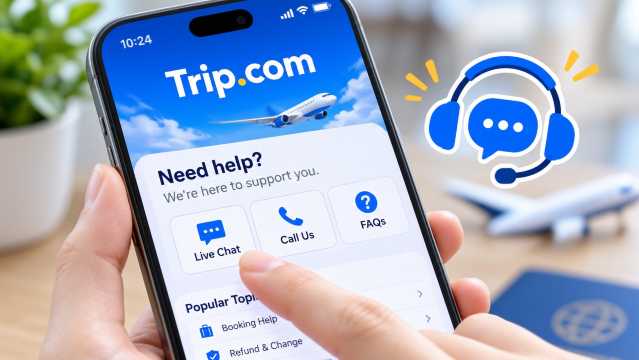
If you cannot change your registered email address or access your account, Trip.com provides customer support through its website and app.
Through the Trip.com App
- Open the Trip.com app.
- Tap Account.
- Select Customer Support.
- Choose the available chat or call option.
- Explain your email address problem and follow the verification instructions.
Through the Trip.com Website
- Visit Trip.com Philippines Customer Support.
- Select Chat or Call Us.
- Choose the relevant account or booking issue.
- Provide the requested information to receive assistance.
Trip.com offers 24/7 customer support, although availability for particular services and languages may vary.
FAQs About Changing Your Email Address on Trip.com
-
Why am I not receiving my Trip.com verification code?
-
Will changing my Trip.com email affect my existing bookings?
-
Can I use my new email address to log in to Trip.com?
-
What should I do if I entered the wrong email address when booking?
-
Can I change the email address on a confirmed Trip.com booking?