Argentina eSIM | dual network · all AI & TikTok | daily package/traffic package | 24 hr billing | QR code

Argentina eSIM | dual network · all AI & TikTok | daily package/traffic package | 24 hr billing | QR code

3.7/5
(10 reviews)
300+ booked
Use anytime during validity
Book now for today
Booking confirmation
Free cancellation by 12:00 AM, 1 day before the expiration date
From
SGD 0.67
Limited-time sale
50% off
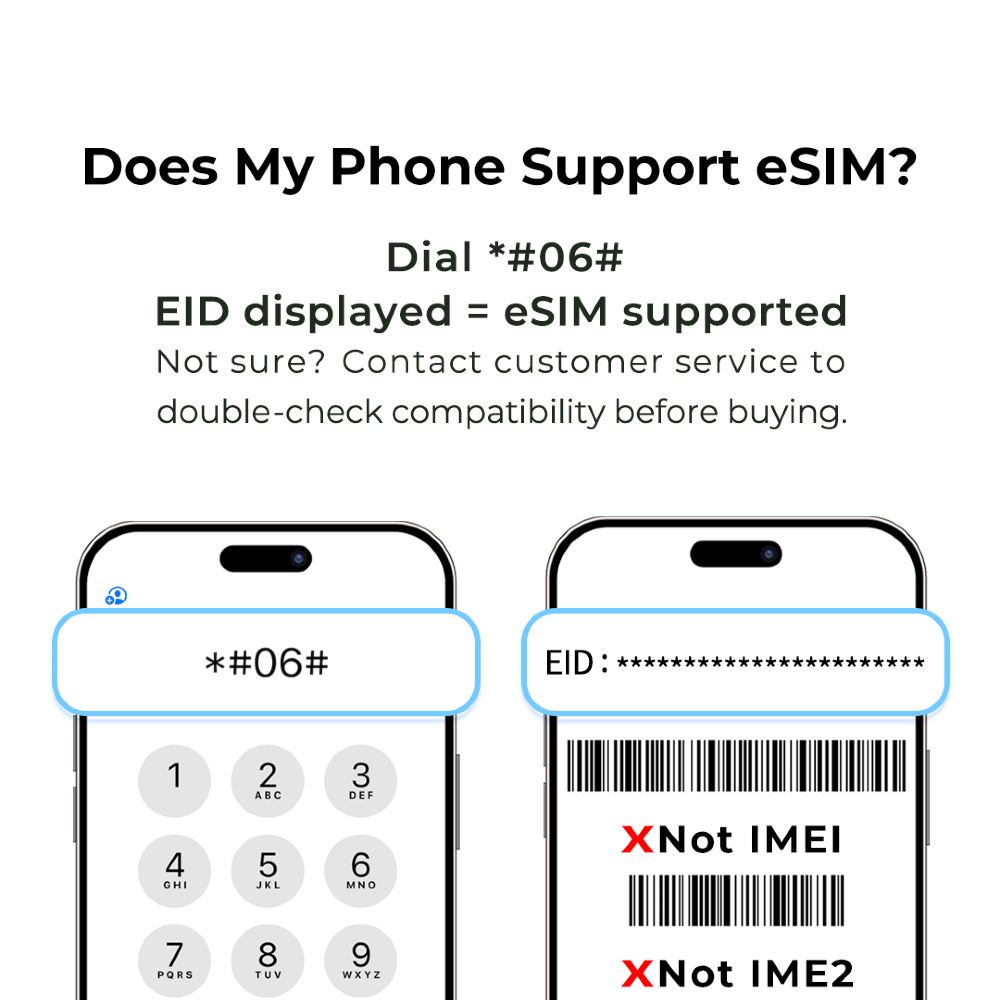
Device info

Product information

Signal coverage

Argentina Movistar 4G / Claro 4G

Product details

Show less
Validity period
Valid for 60 days from the booking date, Valid for 1 use(s) only
What's included
eSIM + Data Plan
Hotspot / Tethering Supported
Call, SMS not included
SMS
Top up (please repurchase if you need to continue using)
How to use
Instructions
 
How to activate
 
Please install the eSIM in a stable network environment and follow the steps below to complete the setup. Enable data roaming when using it.
 
Actual steps may vary depending on your OS version and device model.
 
[Installing eSIM]
*Each QR code can only be used on one device. After installation, the eSIM will be linked to that device and cannot be transferred.
 
Method 1 Install directly via Trip.com app:
Open the Trip.com app > Go to "Account" > All bookings > Tap the "Install" button.
 
Method 2 Scan QR code / Manual input:
1. Open the QR code attachment in your Trip.com booking and print it or save it to another device.
2. Go to "Cellular network" (iOS) or "SIM manager" (Android) in Settings.
3. With internet connection, tap "Add eSIM" and scan the QR code.
4. If scanning fails, manually enter the "SM-DP+ Address" and "Activation Code" from your confirmation voucher.
5. If steps 3-4 fail, your device might be carrier-locked (restricting other network bands) in your country/region of residence. Contact your carrier to unlock before using eSIM.
 
[Using eSIM]
1. Disable primary SIM and enable eSIM.
2. Enable "Cellular" (iOS) or "SIM" (Android).
3. Enable "Data roaming".
4. If still no connection after these settings, configure APN and restart (see below).
 
[About APN]
1. Setup paths:
iOS: Settings > Cellular > Select eSIM > Cellular data network
Android: Settings > Connections > Mobile network > Select eSIM > Access point names (APN) > Create new or edit existing APN
2. Enter APN:
APN: sl2sfr
3. Restart device.
 
[eSIM usage query]
Enter your booking number to check (or one-tap access via Trip.com PDF voucher): https://flow-consumer-center.billionconnect.com/usageq/trip/en
 
[Activity supplier customer support]
Tap [Activity supplier] in the top-right corner of your booking for assistance. If issues occur, do NOT delete the installed eSIM and provide screenshots of your phone settings.
Change & cancellation policies
If a cancellation request is submitted before 12:00 AM, 1 day(s) prior to the expiration date, no cancellation fee will be charged.
If a cancellation request is submitted after 12:00 AM 1 day(s) before the expiration date, a fee of 100% will be charged.
This product cannot be canceled after activation.
If a discount is applied, the cancellation fee will be calculated based on the original price before the discount and will not exceed the amount paid.
Partial refund is not available.
Important note

■ After arriving in a covered destination, please enable "Data Roaming" for the eSIM to access mobile data normally.


■ Troubleshooting

If you are unable to access the internet, please check the following:

1. The eSIM is set as the default mobile data line.

2. Data Roaming is enabled.

3. Turn Airplane Mode on and then off.

4. Manually switch the network operator.

5. Manually configure the APN.


■ Supports Multiple Installations

eSIM can be installed, deleted, and reinstalled up to 10 times on the same device.

Reinstallation is allowed within the validity period of the QR code (for unactivated eSIMs) or the data plan (for activated eSIMs). After expiration, reinstallation is not possible.


■ Network Performance

Actual signal strength, network speed, and 4G/5G service availability may vary depending on your location, the local carrier's network coverage, your device compatibility, as well as environmental factors such as terrain, buildings, and weather conditions.


■ Disable Domestic SIM Card Roaming

Before using an eSIM, make sure to turn off data roaming on your domestic SIM card to avoid incurring high international roaming charges. You will be responsible for any related fees, including roaming charges, overseas SIM card/eSIM purchase costs, and transportation expenses. No additional compensation will be provided.


■ Maintaining Fair Usage Policy

To maintain network quality and the Fair Usage Policy (FUP), telecommunications companies may throttle users who consume large amounts of data within a short period, leading to slower speeds or inability to connect. To ensure stable internet access, please avoid activities that consume excessive data, such as prolonged video streaming/downloading, software updates, or sharing your network (hotspot).

FAQ